Degoog Using search
The results page, one part at a time: tabs, filters, the sidebar, result actions, and the keyboard.
Autocomplete
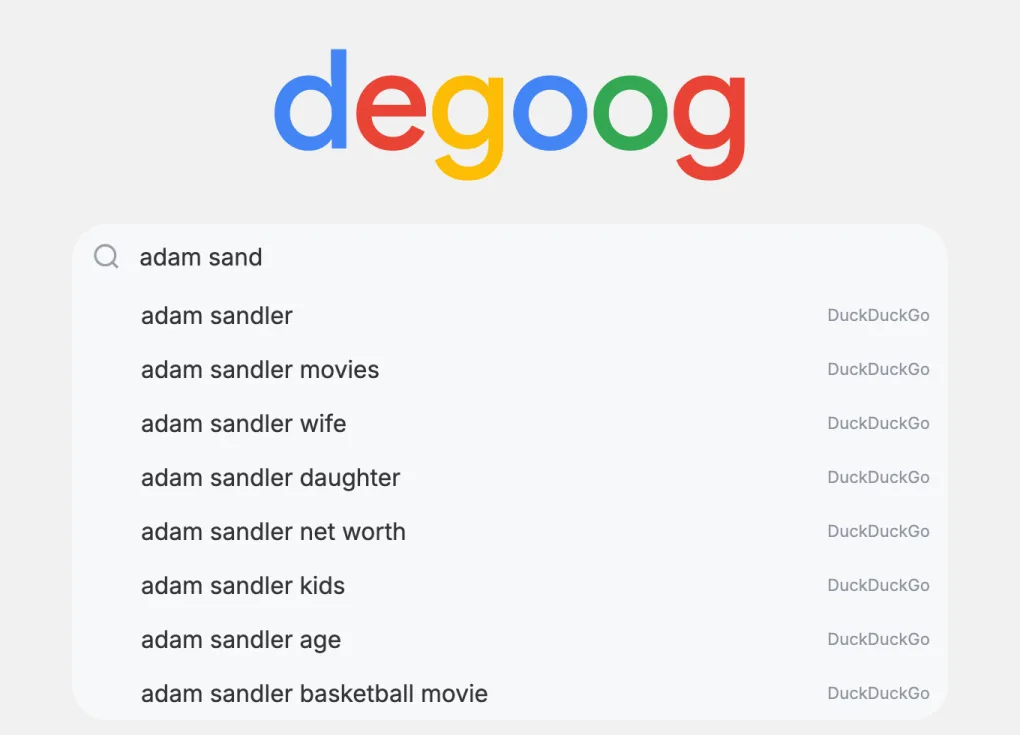
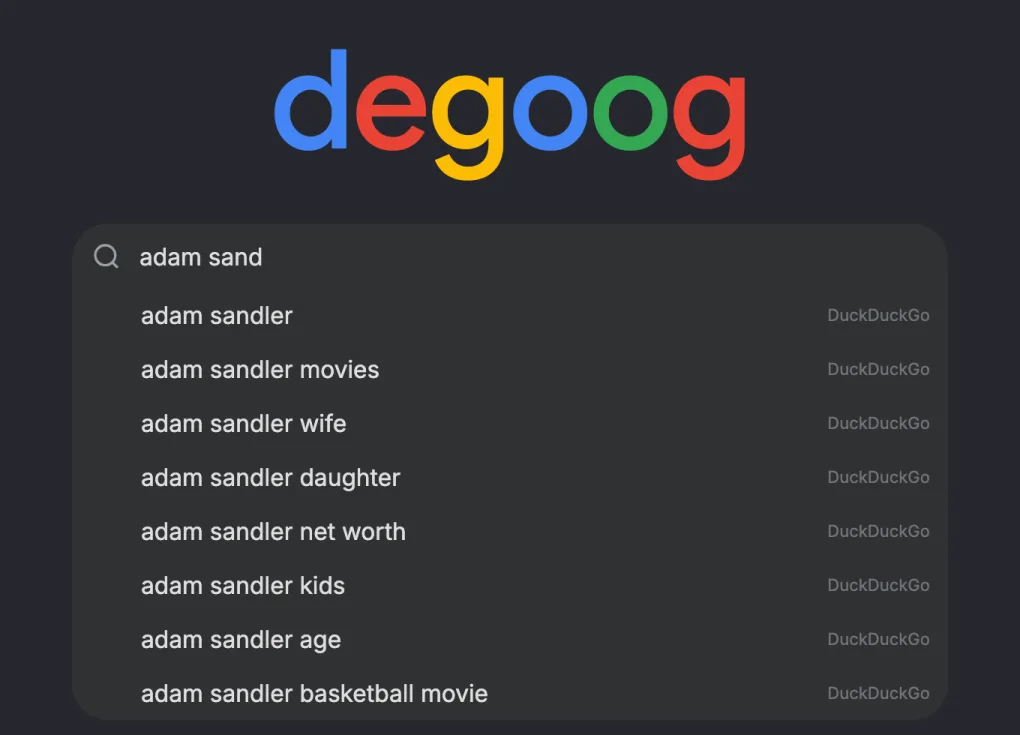
Suggestions appear under the search box as you type, but only if you have installed an autocomplete provider. None ship with Degoog. If the dropdown never appears, that is almost always why.
Some providers support rich suggestions: an entity card with a thumbnail and a short description at the top of the list. It is a per-provider toggle in Settings, Autocomplete, Configure, off by default.
Result tabs
The tabs across the top are not a fixed list. Each engine declares which search types it handles, and Degoog builds one tab per type it can actually serve. Install only a web engine and you get one tab. Add Bing Images and an Images tab shows up. Add an engine that invents its own type, like a file search or a media library, and you get a tab for that too.
Switching tab runs a fresh search against just the engines that serve that type, so an empty Images tab means "no image engine returned anything", not "no results exist".
You can reorder the tabs from Settings, Engines, Order tabs, and drag them into whatever sequence suits you.
Filters
The Filter button next to the tabs opens a small panel with two controls:
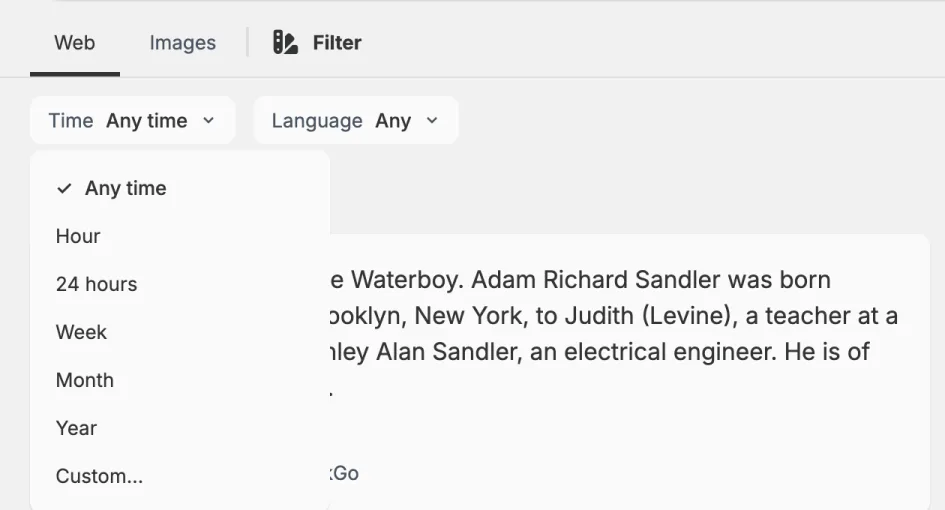
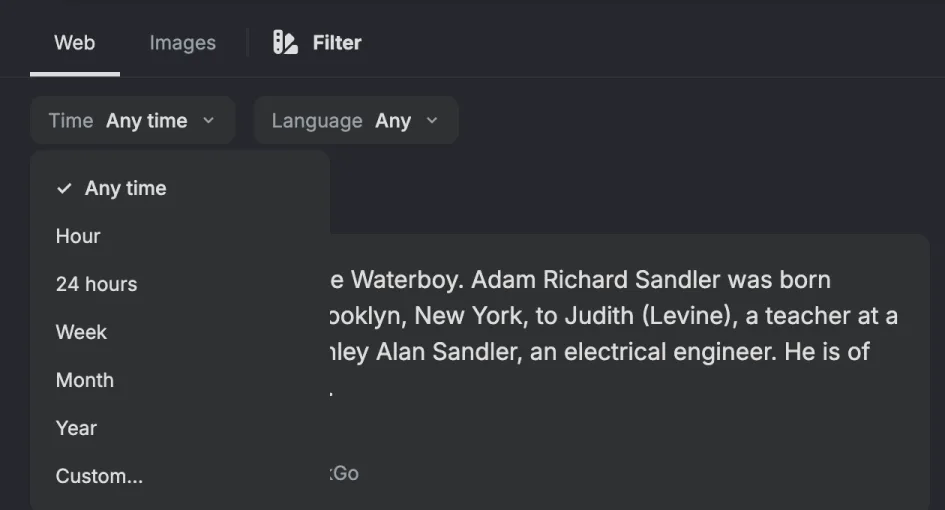
- Time. Any time, past hour, past 24 hours, week, month, year, or a custom range with a start and end date.
- Language. A searchable list. By default roughly 90 languages are offered; whoever runs the instance can trim that to a shorter list in Server settings.
Filters are passed through to each engine. Engines that do not support a filter ignore it, which is why a time filter sometimes tightens one engine's results and not another's.
Image filters
On an images tab there's no Filter button. The filters live in the sidebar instead, and you get a richer set: size, colour, type (photo, clipart, line art, animated), layout (square, wide, tall), and safe mode (strict, moderate, off).
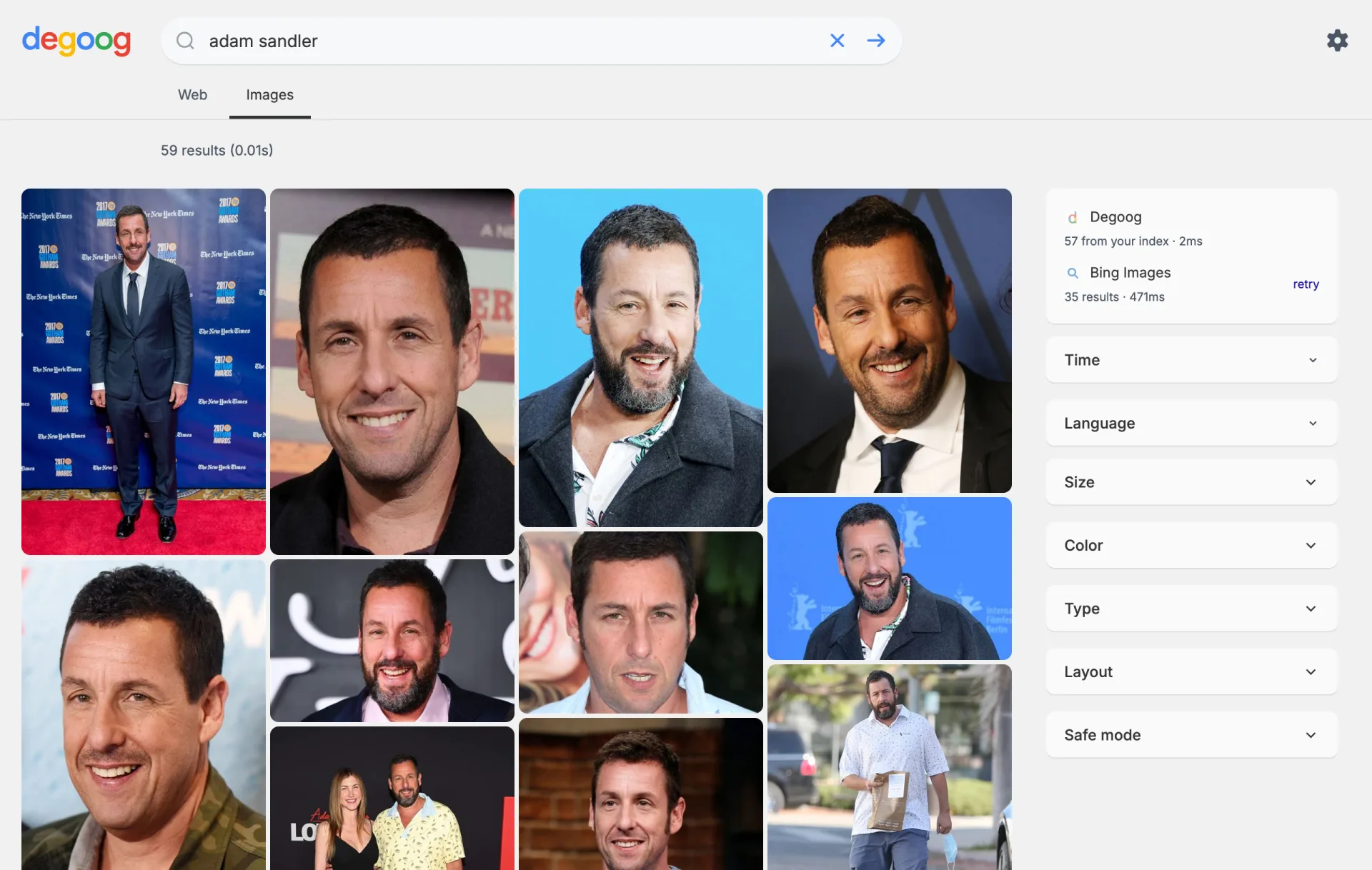
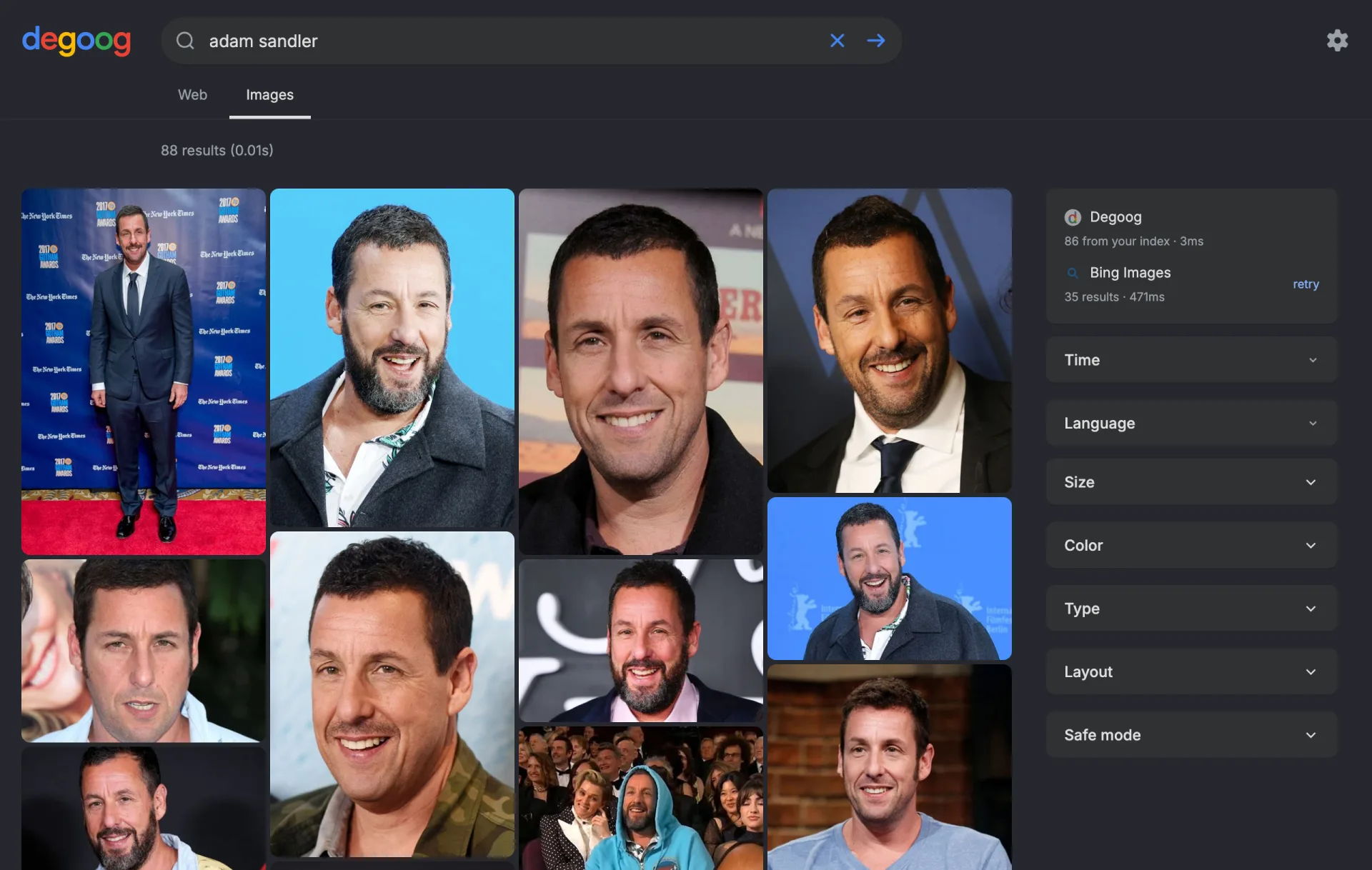
The options you see are the union of what your enabled image engines actually support. Install a second image engine and new options can appear. Disable one and options can disappear. Nothing is broken; the panel just reflects reality.
The sidebar
The right-hand column is where Degoog is honest with you about what happened:
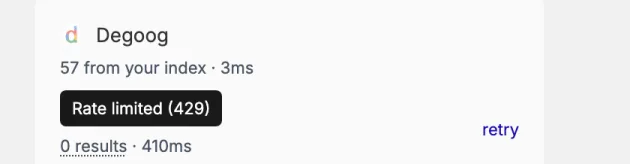
- Engine Performance. Every engine that ran, how long it took, and how many results it contributed. Handy for spotting the one engine adding two seconds to every search.
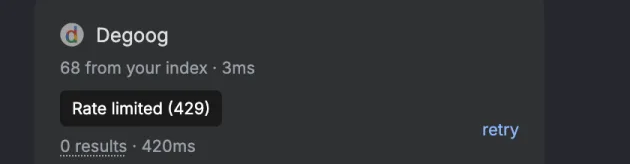
- Failures, with a reason. When an engine comes back empty, Degoog says why: blocked by the engine, rate limited, CAPTCHA challenge, could not read the response, timed out, network error, blocked by an interstitial page, or no usable response. There is a retry link next to each failure that re-runs only that engine. The reason only shows when you hover the dotted 0 results under the engine's name.
- People also search for. Related queries, when engines supply them.
- Plugin panels. The built-in Wikipedia card lands here, and so do slot plugins configured for the sidebar.
Those failure reasons are the single most useful debugging tool in the app. "Blocked by the engine" or "Blocked by an interstitial page" on Google means you need a different transport, not a different engine. Tips and tricks explains which one.
Reading a result
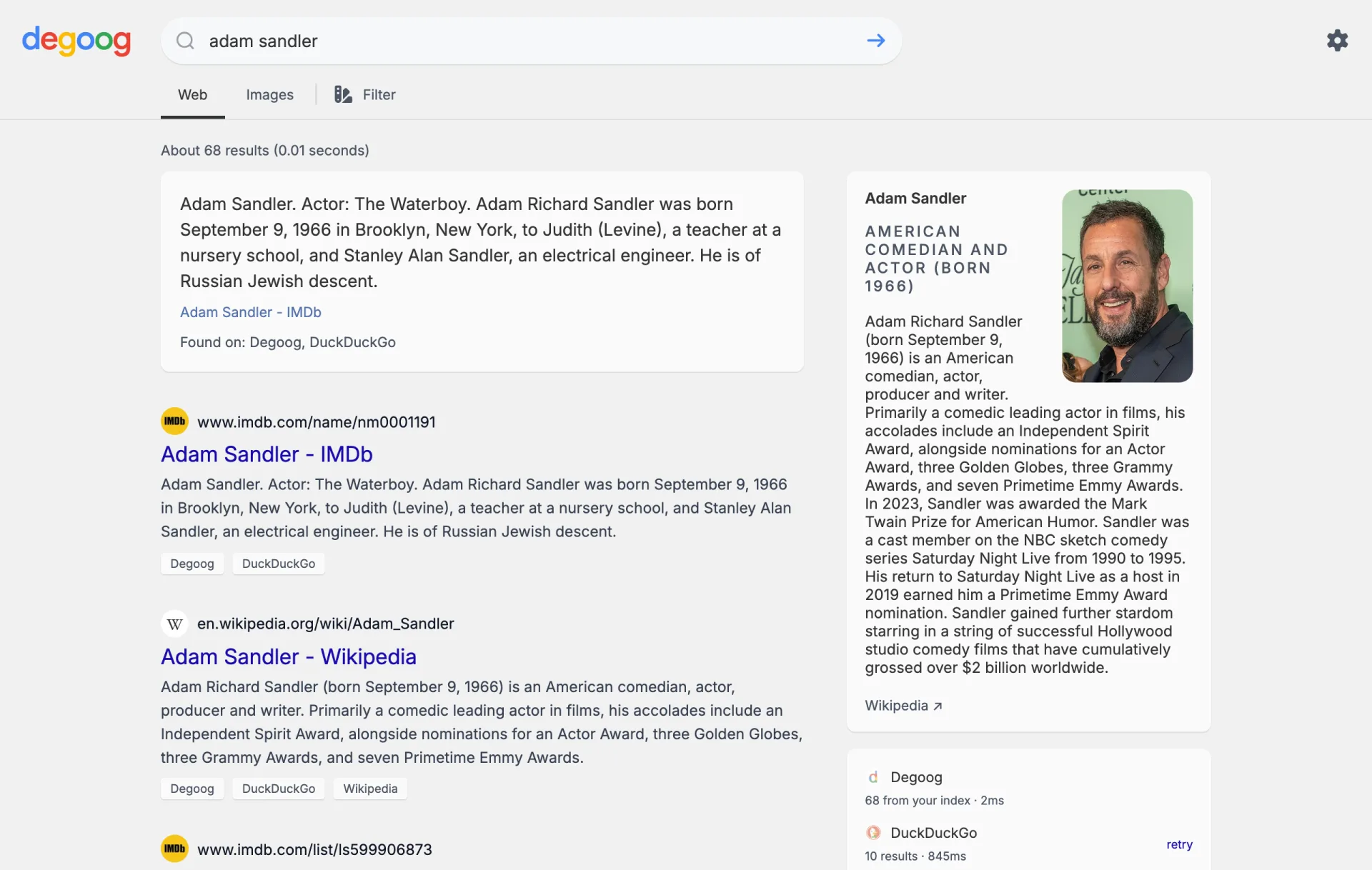
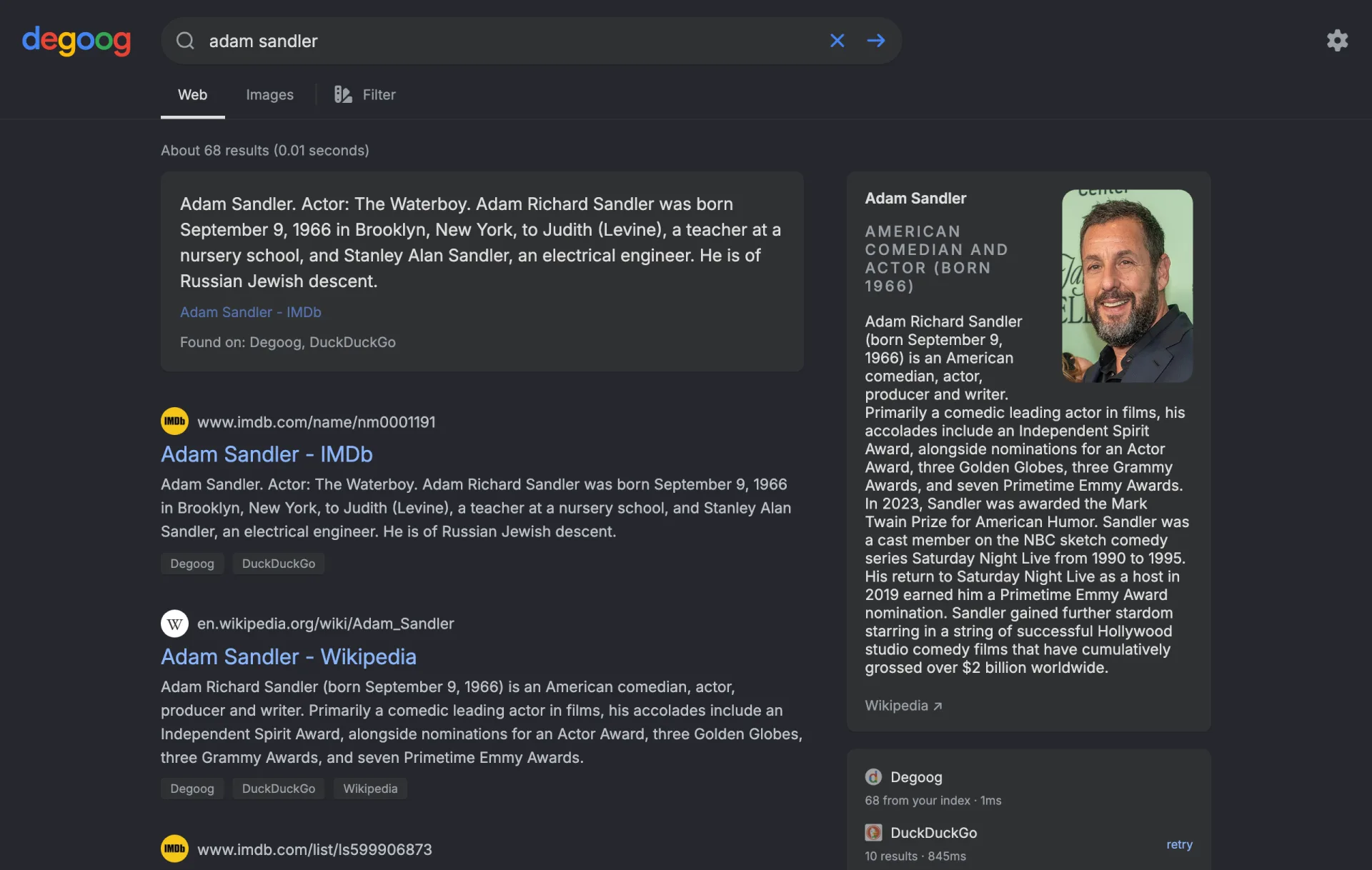
- Sources. When several engines return the same page, Degoog merges them into one row and lists every engine that found it. Overlap pushes a result up the ranking.
-
Insecure badge. Marks a site served over plain
http://. - From your index. Shows as a Degoog engine tag (hover it and it says "From your index") when a result came from the Degoog Indexer rather than a live engine.
-
Domain actions. If the instance allows it and you are
signed in to settings, a kebab menu on each row lets you block that
domain, replace it with another (for example send every
reddit.comlink to your preferred front end), or score it to push that domain up or down in future rankings. These are instance-wide rules and are hidden entirely on public or unauthenticated instances. The switches live in Server settings, and each action needs two of them on: the Enable one and the Allow ... from search results one. With only the first, the rule works but the menu won't offer it. - Refresh favicon. When a site shows an old or wrong icon, signed-in users can pick Refresh favicon from the same three dots menu. Degoog drops the saved icon for that domain and asks the providers again. It needs at least one favicon provider enabled and isn't on the no-JS page.
- Favicon placeholder. A dashed outline with a "No favicon extension installed" tooltip means no favicon provider is enabled and the favicon store is off. Install one from the Store. See Favicon providers.
Using the three dots menu
-
Hover a result and click the three dots on the right of its address. You get whichever of Block, Replace and Score are switched on, plus Refresh favicon.
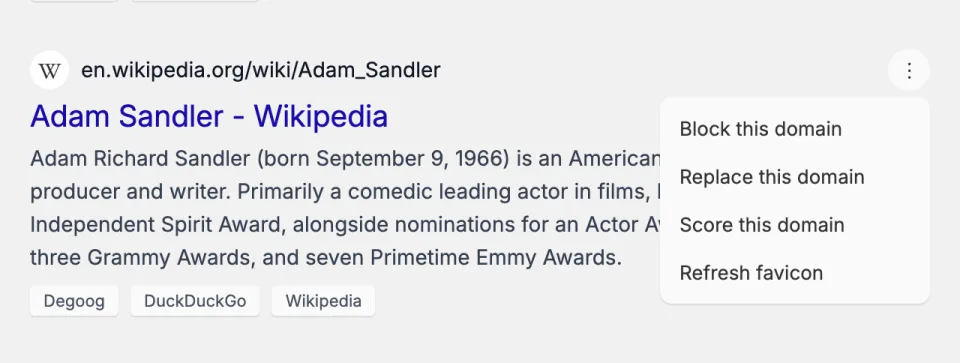
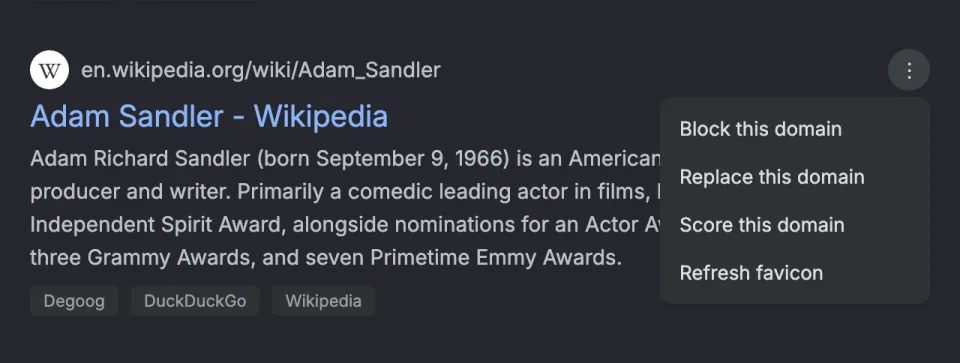
The menu with all three domain actions switched on. -
Block this domain asks you to confirm, then hides the domain from every result for everyone on the instance.
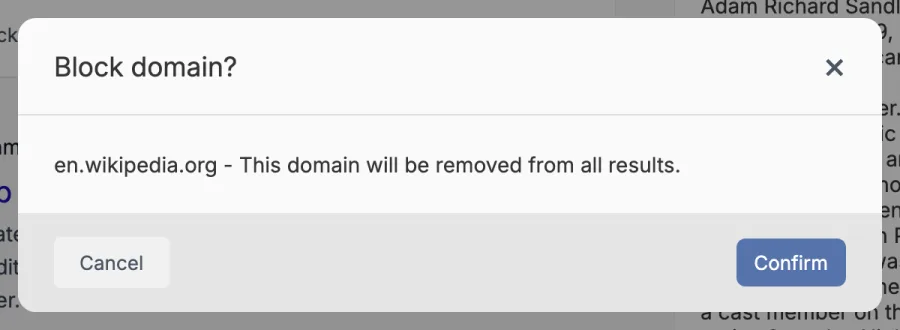
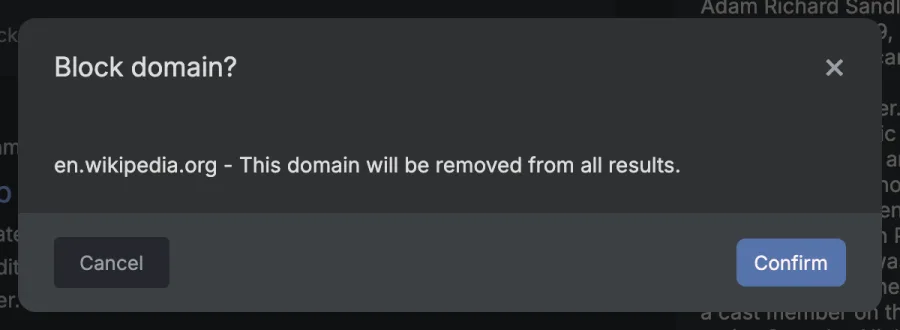
Blocking a domain. -
Replace this domain asks which domain to send it to. Type something like
wikiless.example.organd confirm, and every link to that domain gets rewritten straight away.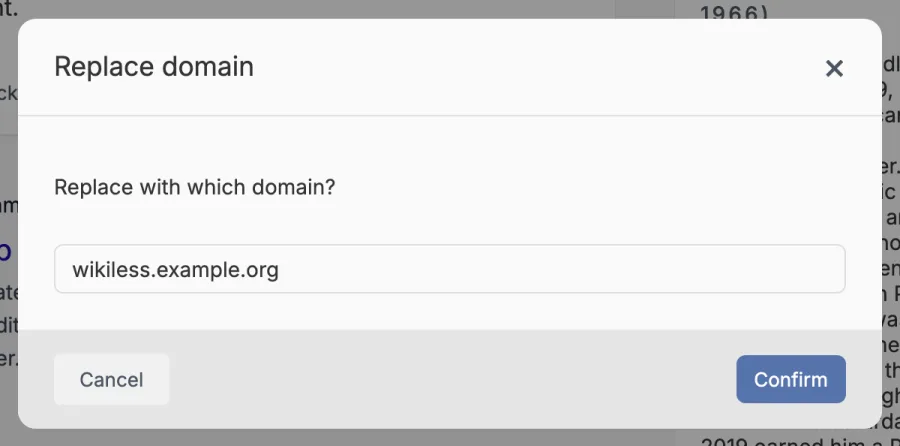
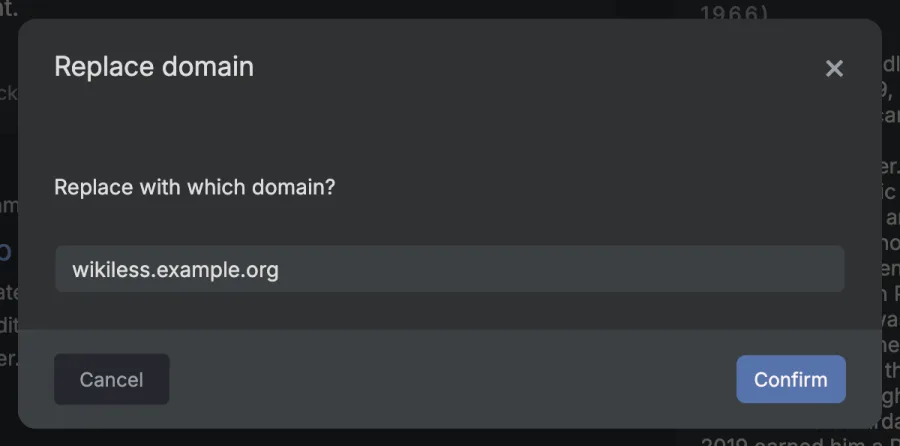
Replacing a domain. 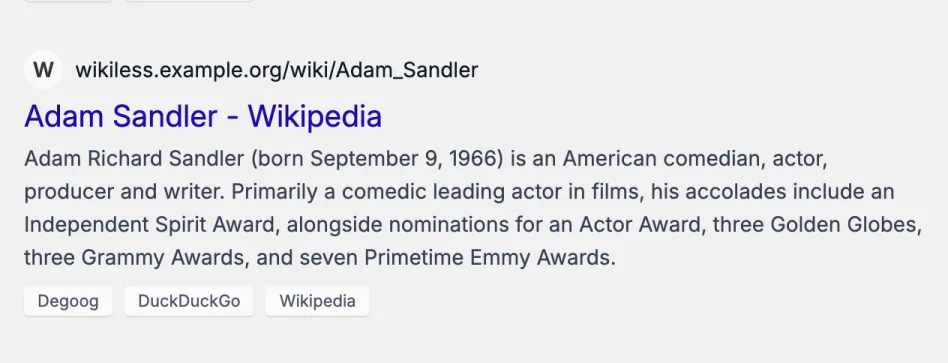
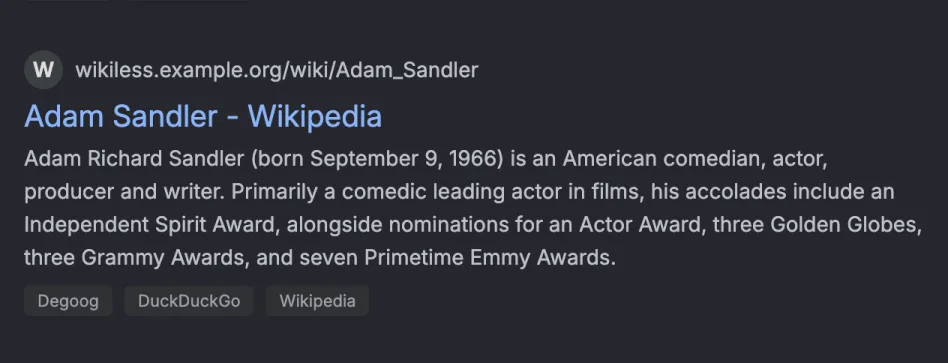
The same result after the replace rule. -
Score this domain asks for a number. Positive pushes the domain up, negative pushes it down. It always starts at 10, even if the domain already has a score.
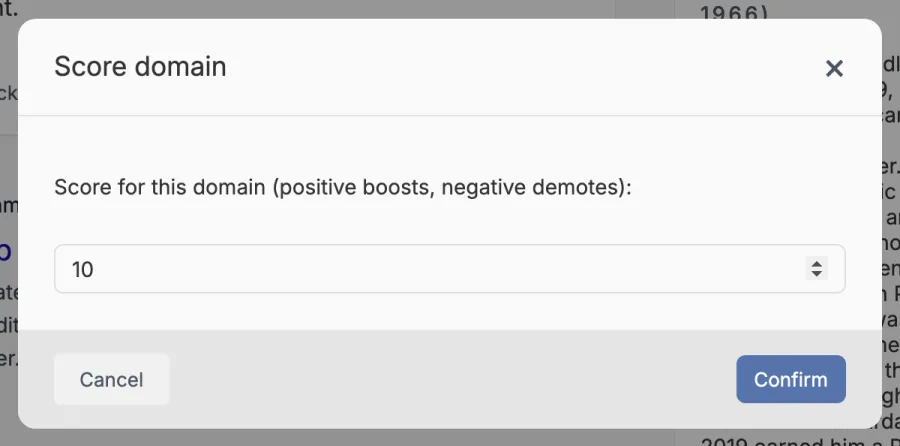
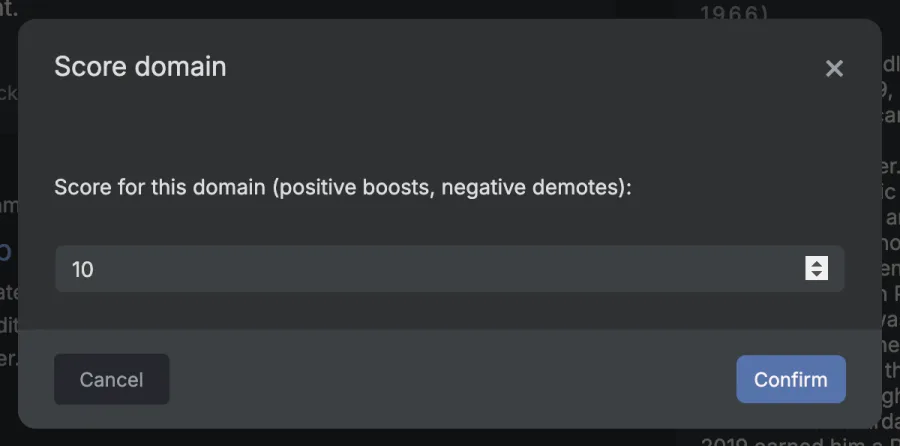
Scoring a domain.
Every rule you add from here ends up in the lists in Server settings, where you can edit or remove it later.
Images and videos
Clicking an image result opens a preview panel on the right, with Visit page and Download buttons and arrows for the next and previous image. Click the big image in that panel and it opens in a lightbox you can zoom with the scroll wheel (up to eight times) and drag around. Videos and other media open in a preview panel. In both, ← and → move between items and Esc closes.
Animated GIFs play inline by default. If that is distracting, Settings, General, Search Options has "Disable GIF animation in image results".
Pages
Results paginate for as long as the engines say there are more pages, but most engines stop being useful (or stop answering politely) somewhere around page 10. Whoever runs the instance can swap the page links for infinite scroll in Server settings.
I'm Feeling Lucky
Runs a normal web search and redirects you straight to the first result. The button's label shuffles through variants when you hover it, purely for fun. Every variant does the same thing.
Search options worth knowing
Settings, General, Search Options holds nine toggles that change how the results page behaves. They are stored in your browser, so they are yours alone:
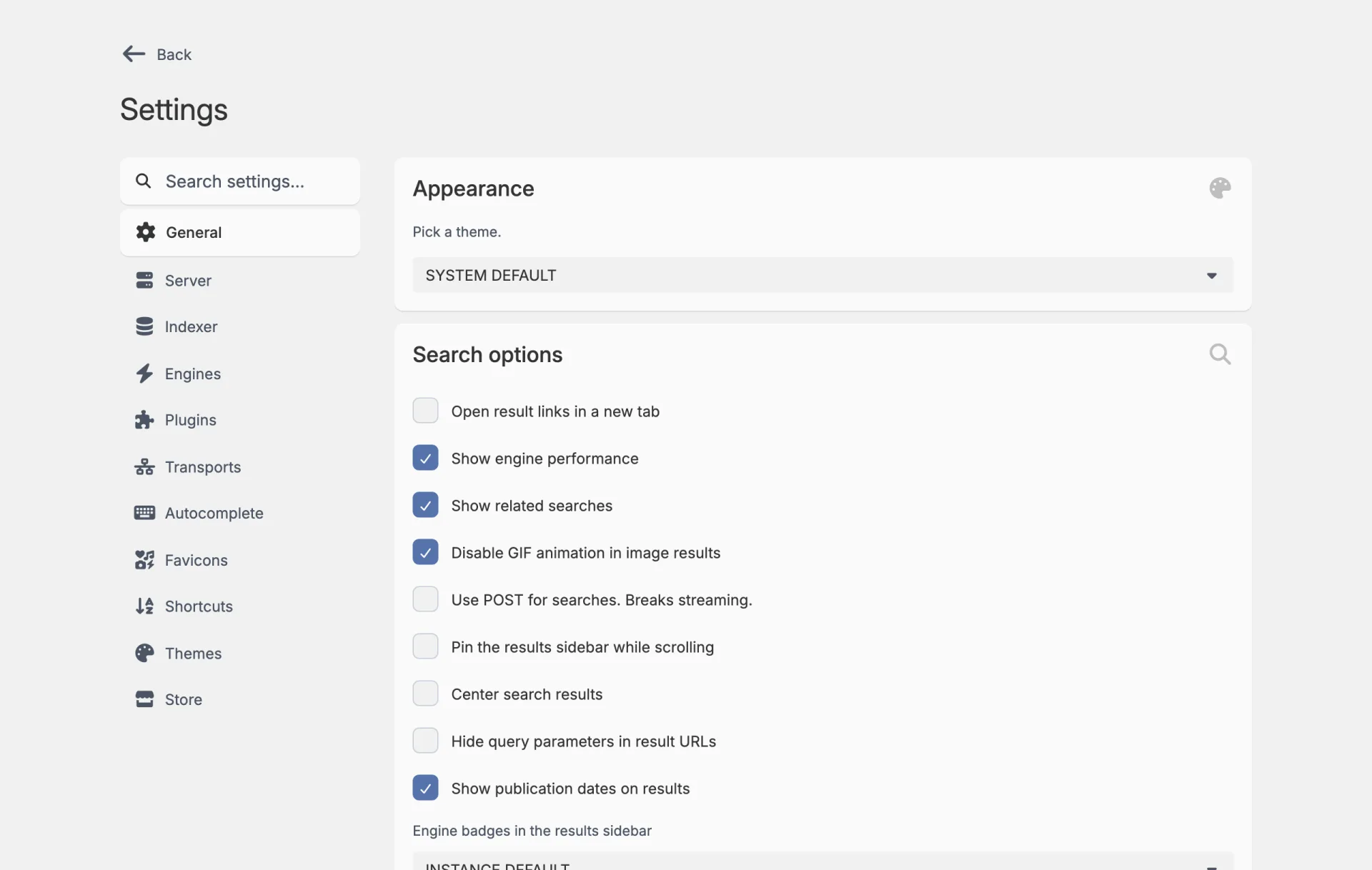
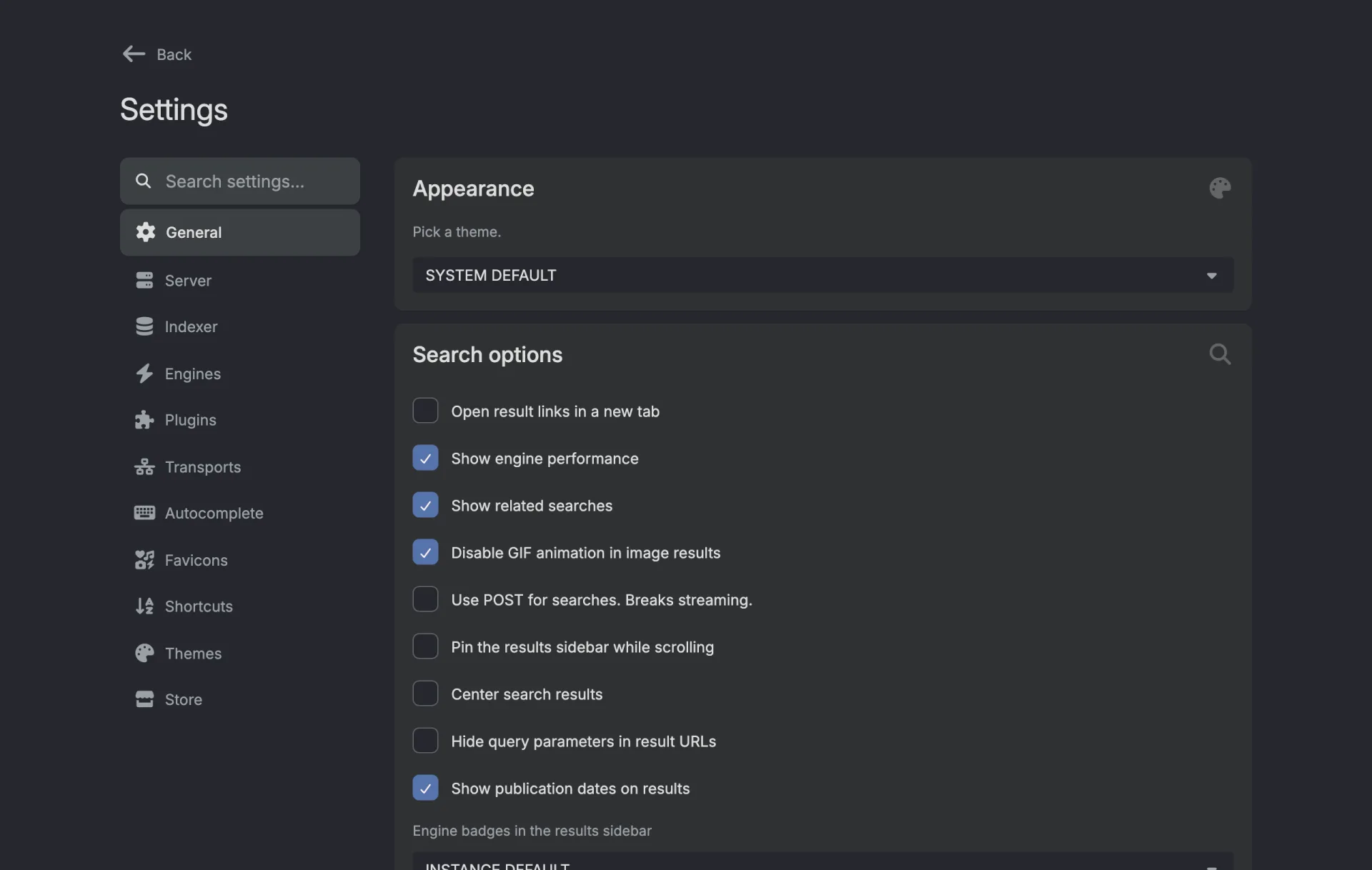
| Option | Default | What it does |
|---|---|---|
| Open result links in new tab | Off | Adds target="_blank" to every result link. |
| Display engine performance | On | Shows or hides the timings block in the sidebar. |
| Display related search queries | On | Shows or hides "People also search for". |
| Disable GIF animation in image results | On | Freezes animated GIFs in the image grid. |
| Use POST method for search requests | Off | Sends your query in a request body instead of the URL, so it never lands in browser history or proxy logs. Not compatible with streaming results. |
| Keep the results sidebar sticky | Off | The sidebar follows you as you scroll. |
| Center search results | Off | Centres the results column instead of aligning it left. |
| Hide query parameters in result URLs | Off | Trims tracking junk off the displayed URL. |
| Show publication dates on results | On | Shows the date an engine reports for a result, when it has one. |
Under the toggles, Engine badges in the results sidebar picks the little icon next to each engine in the sidebar: the instance default, the engine's favicon, where the engine came from, or nothing.
Keyboard shortcuts
One shortcut is built in: / focuses the search box. Everything else is an installable shortcut extension, and all of them are rebindable in Settings, Shortcuts. The official store publishes:
- Next tab and previous tab
- Switch tab by number (hold your chosen modifier, press 1 to 9)
- Go home and go to settings
- Highlight next result and highlight previous result (the highlighted result has focus, so Enter opens it)
To rebind one, click it in Settings, Shortcuts and press the key combination you want. Esc cancels the recording.
Searching these docs
The box in the sidebar of this site does two things at once. It highlights matches on the page you are reading and counts them, and it searches every other docs page in a dropdown. Press / to focus it and Esc to clear it. Following a result carries your query across and highlights it on the destination page.