Degoog Engines, autocomplete and transports
Where your results come from, where your suggestions come from, and how your server reaches either.
Engines
An engine is one source of results. Degoog runs every enabled engine for the current tab in parallel, then merges what comes back. A page found by three engines becomes one row that credits all three, and that overlap pushes it up the ranking.
None ship with the app. Install them from the Store first.
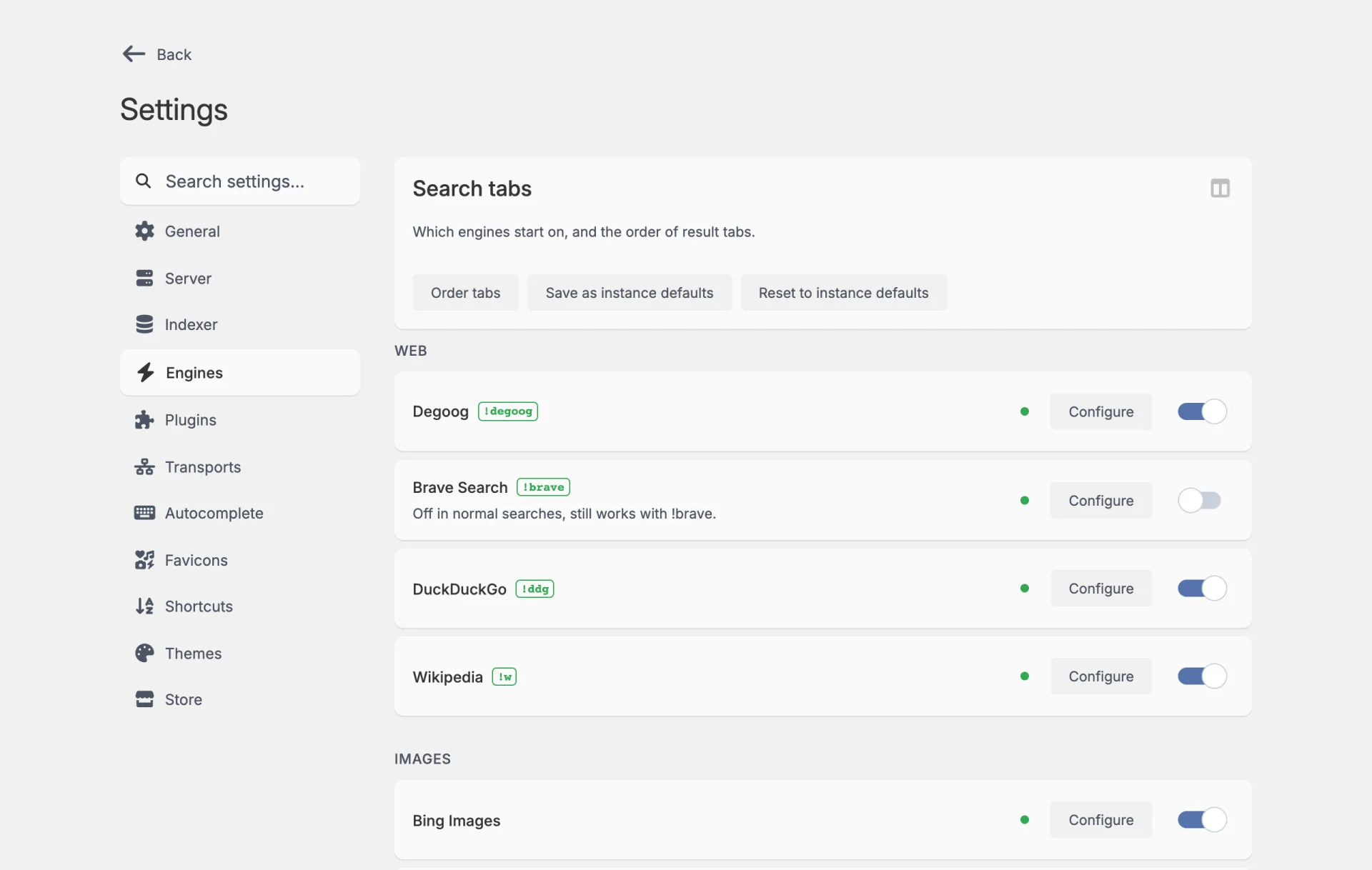
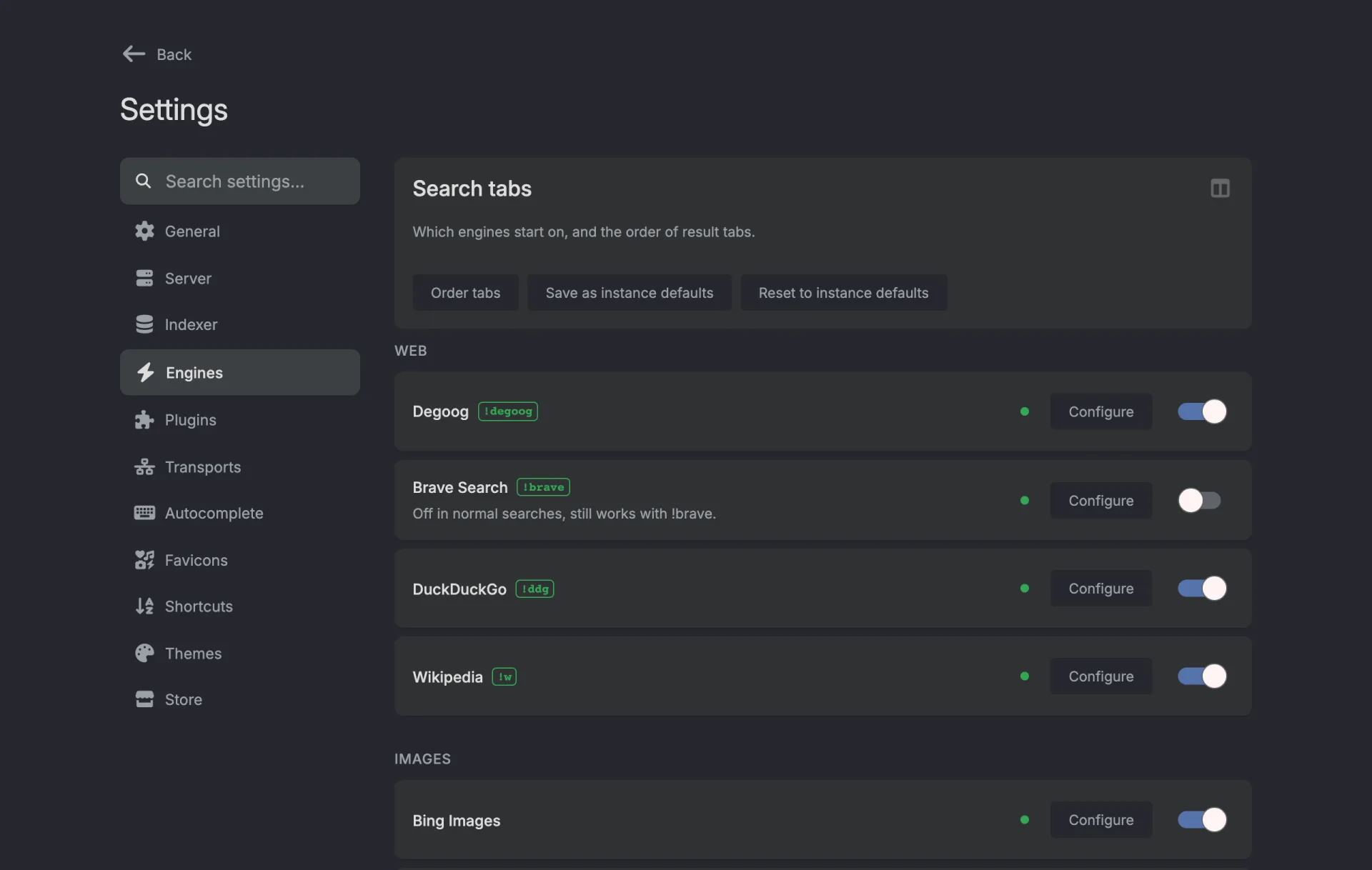
The green tag next to an engine's name is its bang. Switch an engine off and
it stops running on normal searches, but its bang still works, so
!brave adam sandler searches Brave even while it's off.
Types and tabs
Every engine declares one or more search types: web, images, videos, news, files, or anything a developer invents. The Engines tab groups your engines by their primary type, and those same groups become the tabs on your results page. Web always sorts first; the rest sort alphabetically until you reorder them.
An engine that serves more than one type shows an Extra types badge listing the others.
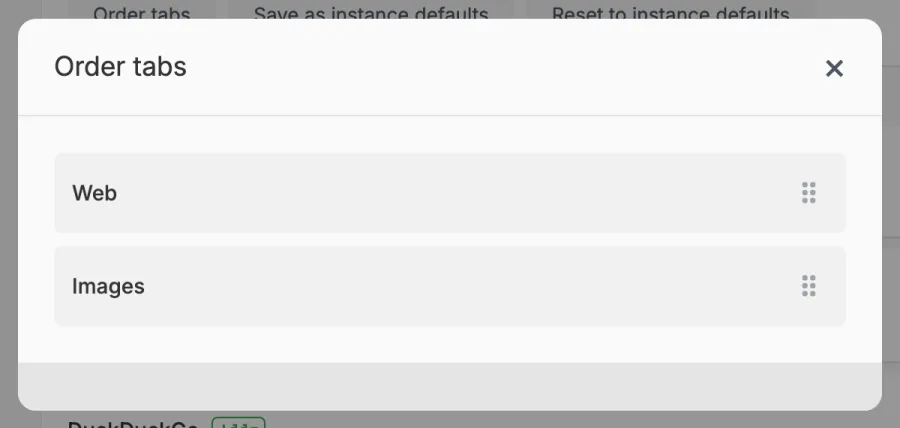
Order tabs at the top of the Engines tab opens a drag-and-drop list so you can put Images before News, or whatever suits how you search. There's no save button, the order sticks as soon as you drop a tab, and it's the same for everyone on the instance.
Configuring an engine
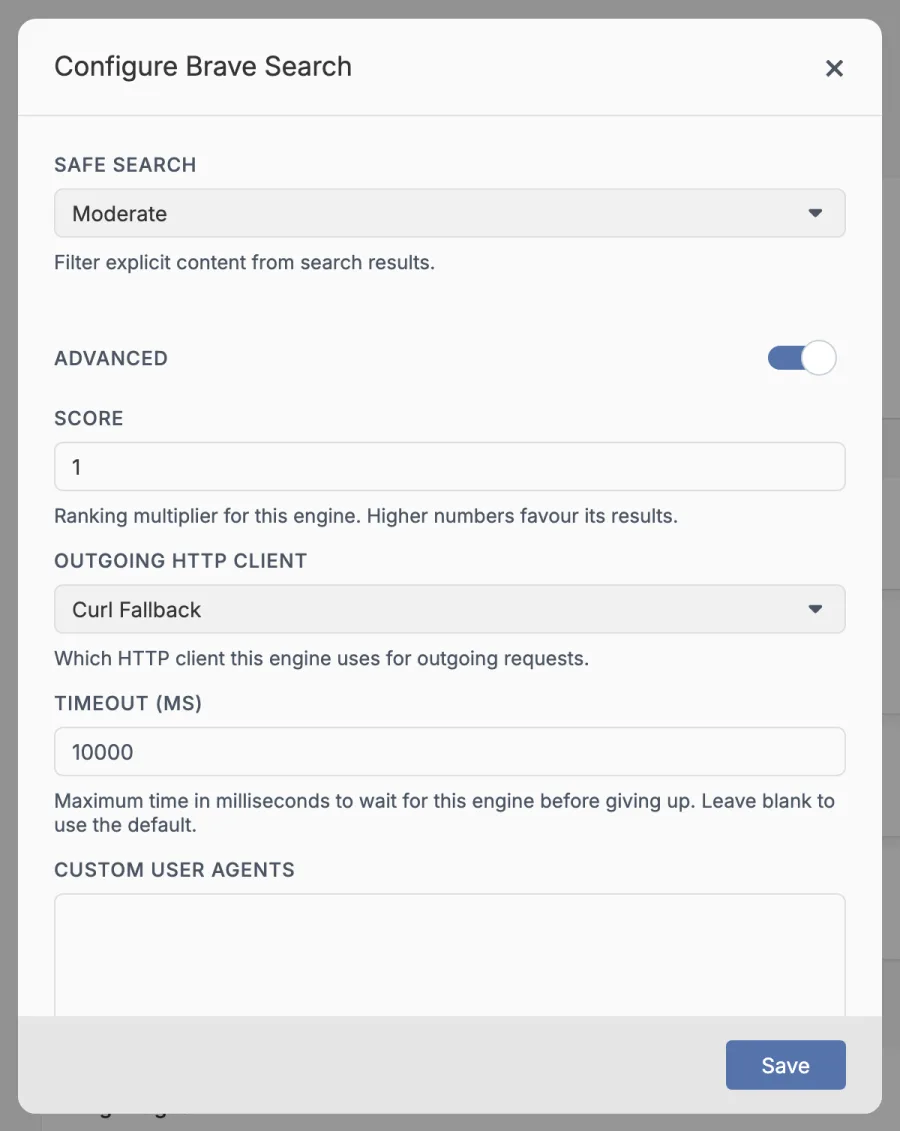
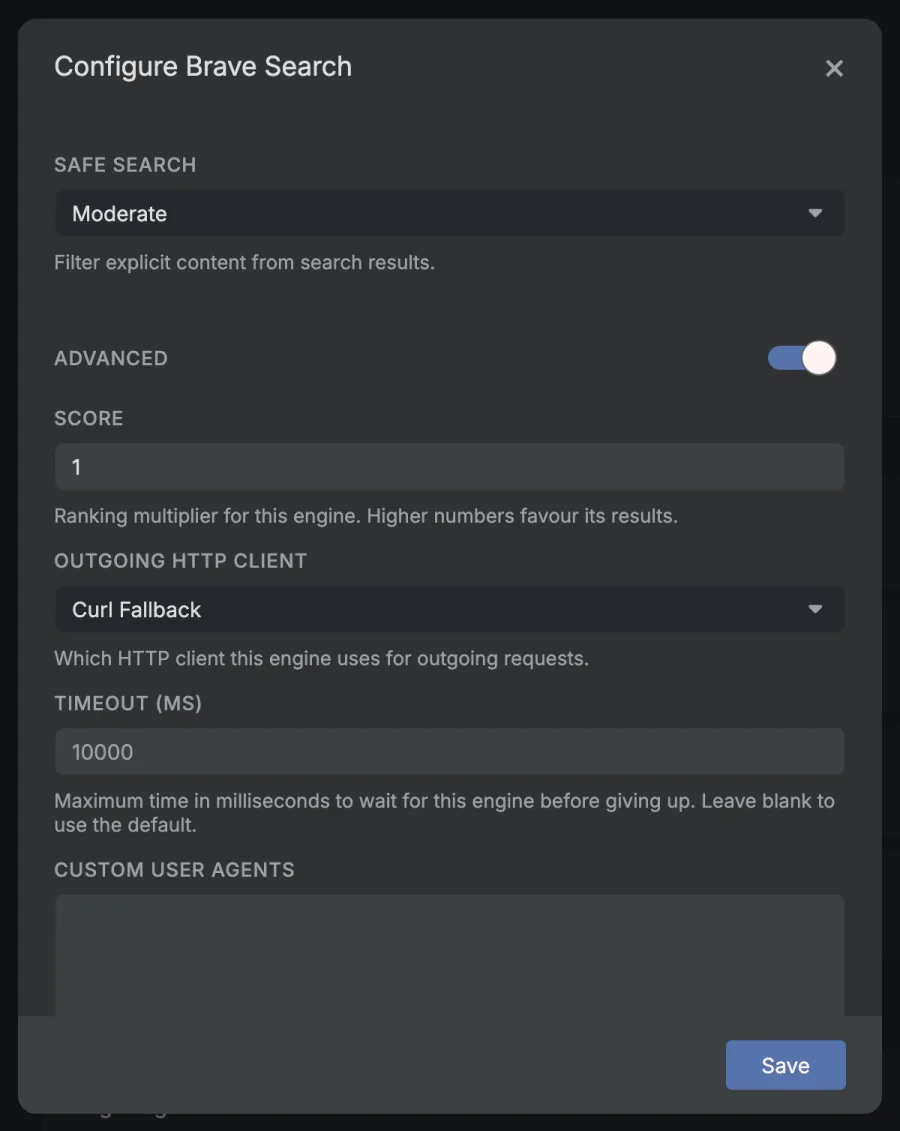
Configure on an engine card opens its settings. What is inside varies by engine (safe search, results format, API keys, instance URLs), but six options are added by Degoog to every engine, under Advanced. Flip the Advanced switch in the window to see them:
| Option | What it does |
|---|---|
| Score | A ranking multiplier for this engine's results. Raise it for an engine you trust; lower it for one that returns noise. |
| Outgoing HTTP client | Which transport this engine uses to reach the internet. This is the setting that fixes most "blocked" failures. |
| Timeout (ms) | How long to wait for this engine before giving up. Leave blank for the default. |
| Custom user agents | One user agent per line. Degoog picks a random one for each request this engine makes. |
| Override proxies | Gives this engine its own proxy list and ignores the global one from Server settings. Turning it on shows a Proxy override list box. |
| Engine type override |
Changes which tabs this engine runs in. Use one type, like
images, or a comma separated list. Leave blank to keep the
engine's own types.
|
When an engine keeps getting blocked
-
Search for something and look at the sidebar. A failing engine shows 0 results with a dotted underline. Hover it and the reason pops up, like "Rate limited (429)" or "Blocked by the engine".
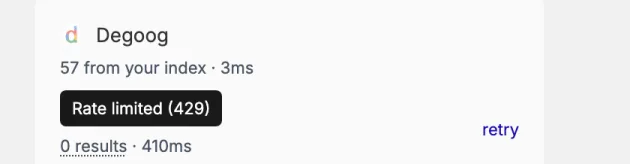
Hover "0 results" to see why an engine failed. -
Go to Settings, Engines, hit Configure on that engine and flip the Advanced switch.
-
Pick a different Outgoing HTTP client, hit Save, then press retry next to the engine in the sidebar.
Not sure which one to pick? Tips and tricks has the pairings that are known to work.
Cards also carry small status badges:
- Configured or Needs configuration, shown when you hover the dot next to Configure, so you can spot the engine that is silently doing nothing because it wants an API key.
- Requires a newer version of Degoog, when an extension declares a minimum version you have not reached.
- Server restart required, when the extension cannot fully load until you restart.
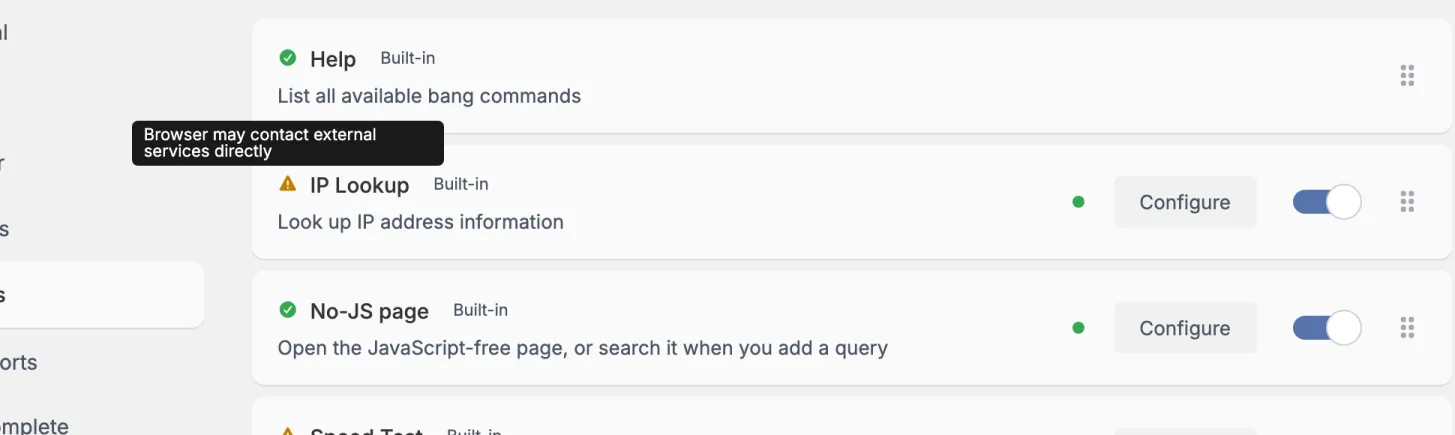
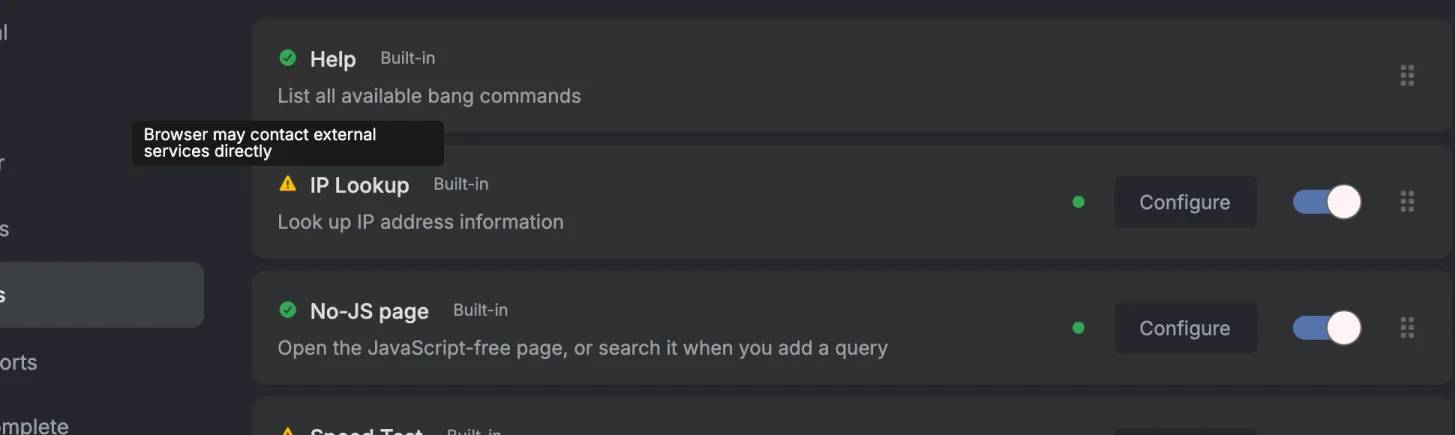
- An exposure note: either "Browser requests go through the server" or "Browser may contact external services directly". Worth reading if you care about what your own browser is talking to. It shows as a little icon in front of the name, a green tick for the first and an orange warning triangle for the second, and hovering it shows the text.
Your engines versus the instance's
Which engines are enabled is stored in your browser. The Engines tab has Save as instance defaults and Reset to instance defaults for publishing your selection as the starting point for new visitors, or throwing yours away and adopting theirs.
SearX compatibility layer
Degoog can run SearXNG's own engine files directly, inside Degoog, with no separate SearXNG instance. Enable it in Settings, Server, SearX compatibility layer and a Compatibility layers box appears in the Engines tab with a Browse SearX engines button.
It is marked experimental for good reasons, and the UI is upfront about them:
- Score, safe search, proxies, transports, and bangs all behave like a normally installed engine.
- The engine code comes from SearXNG upstream and is not maintained by Degoog. Use at your own risk.
- Image filters beyond safe search are not ported. Applying them to a SearX engine will usually return nothing.
- Some SearXNG engines borrow code from other engines. Degoog tells you which extra files it needs to download and asks before doing it. Those files stay behind the scenes and never show up as engines of their own.
Only engines known to be compatible are listed. Running these requires Python
on the host; the binary can be pointed elsewhere with
DEGOOG_PYTHON_BIN.
Adding an engine that is not listed
The box at the top of Browse SearX engines takes either the
name of any SearXNG engine (the file name without .py, for
example seekninja) or an https link to an engine's
.py file. GitHub file links work too, Degoog fetches the raw file
for you.
-
Files the engine imports from other engines
(
from searx.engines.something import ...) are downloaded from the same folder automatically, along with its region and language data. - Degoog loads the engine once before keeping it. If it fails to load, nothing is left behind and the error tells you why, usually a missing Python package or something SearXNG-only that Degoog does not provide.
- Added engines are marked as added by hand, and update and uninstall like any other entry in the list. Update pulls again from the link you added.
- Installing an engine runs its code on your server. Only add links you trust.
Autocomplete providers
These power the suggestion dropdown under the search box. They are separate from engines, and like engines, none are installed by default.
The official store publishes providers for Google, DuckDuckGo, Brave, Bing, Yahoo, and Qwant. The tab itself is deliberately simple: one toggle per provider, plus a Configure button when the provider has options.
The notable option is Rich suggestions, available on providers that support it. Turn it on and you get entity cards with a thumbnail and short description at the top of the dropdown, instead of plain text. Off by default.
Suggestions from all enabled providers are merged, so enabling six of them mostly gets you six copies of the same suggestion. One or two is usually plenty.


The Autocomplete delay in Server settings controls how long Degoog waits after you stop typing before asking for suggestions.
Favicon providers
A favicon provider supplies the icon next to each result. Degoog installs Google and DuckDuckGo on first boot. The rest come from the Store.
The official store has six. Google, DuckDuckGo, Kagi and Yandex ask those services for the icon. Site favicon, which is experimental, gets it from the site itself. Identicon draws a pattern from the domain name and works offline. One or two is enough. Put Identicon last so it only fills gaps.
Your server fetches the icons, and your browser loads them from your own instance. The server asks providers one at a time, in the order you set in Settings, Favicons, and keeps the first icon that loads. With the indexer on, it checks the favicon store before any provider.
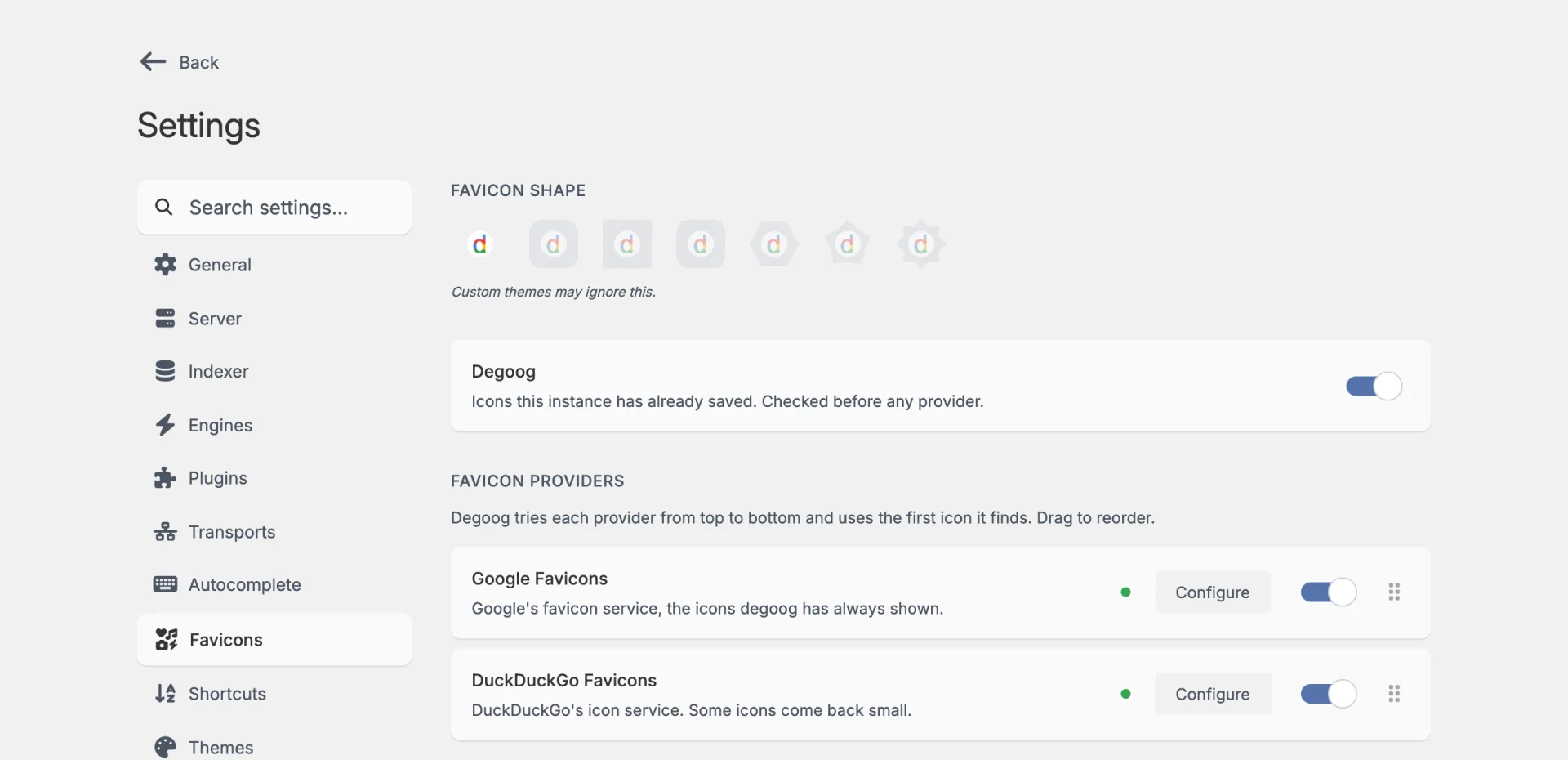
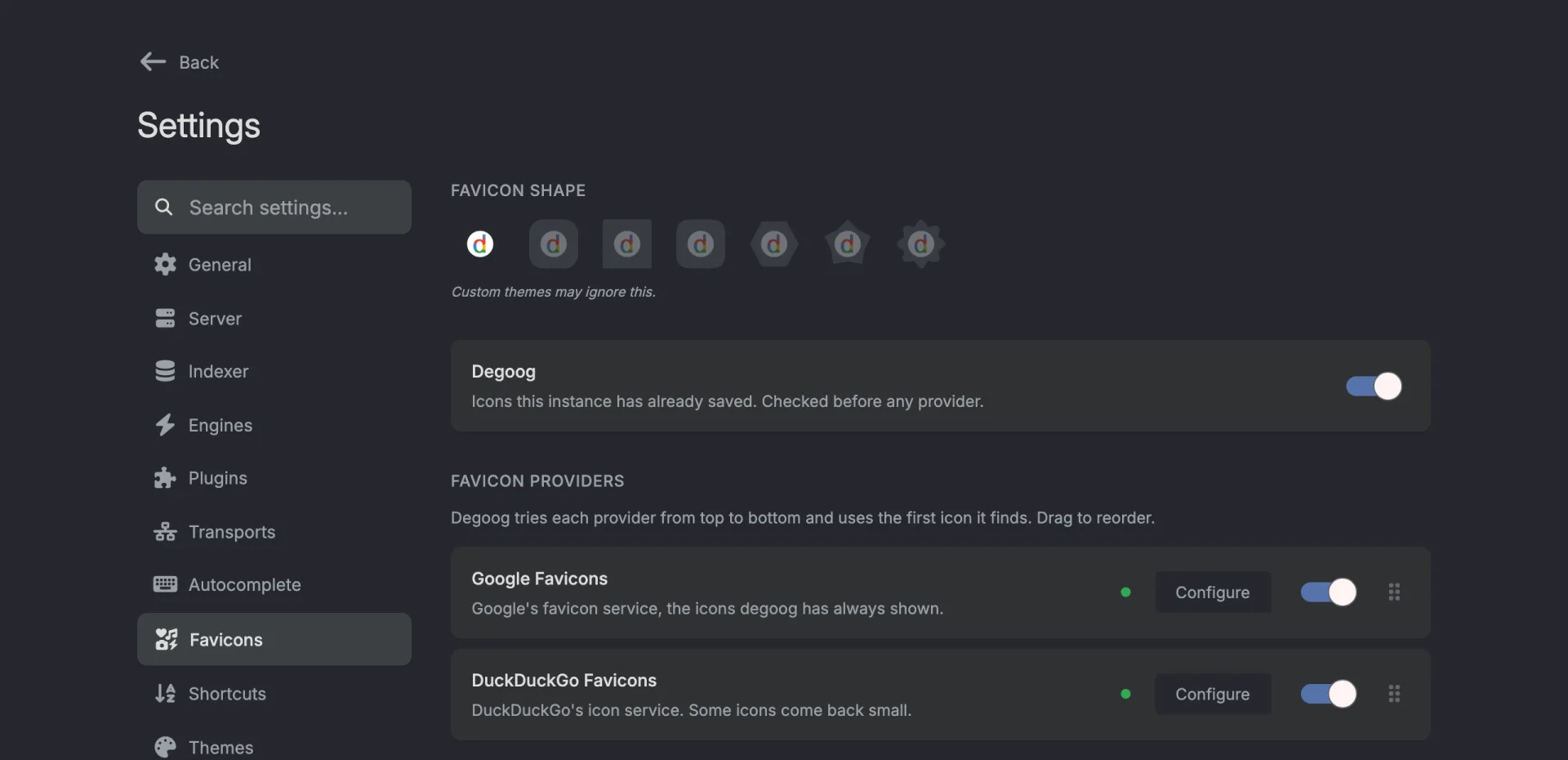
If no provider is enabled but the indexer and its favicon store are on, results still get the icons the store has saved, and a letter for every other site. With the store off as well, every result gets a dashed circle with a "No favicon extension installed" tooltip, and the sidebar hides the engine icons.
If providers are enabled but none has an icon for a domain, the result shows the first letter of the domain.
When a site shows an old or wrong icon, signed-in users can pick Refresh favicon from that result's menu. See Reading a result.
Transports
A transport is how your server makes an outgoing HTTP request. This matters because most search engines actively try to detect and block requests that do not come from a real browser.
You choose a transport per engine, in Configure, Advanced, Outgoing HTTP client. Four are built in:
| Transport | What it is |
|---|---|
| Fetch | Bun's native fetch, with SOCKS and HTTP proxy support. Always available. |
| Curl |
Shells out to the curl binary. A useful TLS fallback.
|
| Curl Fallback | Tries native fetch, then automatically retries with curl on 403, 429, 502, and 503. |
| Curl Impersonate |
Uses curl-impersonate to mimic Firefox's TLS fingerprint. It's listed
even when the binary isn't on PATH, in which case the
engine just fails with "Network error" and the server log says
"No curl-impersonate binary found".
|
The Store adds heavier options: FlareSolverr for Cloudflare challenges, Browserless and the stealth browsers CloakBrowser and Camoufox, and the 4play transport that borrows a real browser session.
The Transports tab has a Test Connection button on transports that support it, which saves a lot of guessing when you are wiring up a service on another host.
Which transport an engine needs is not something you have to work out yourself. Tips and tricks has the known pairings, including the ones Google's engine settings explicitly ask for.
Proxies
Separately from transports, Degoog can send all server-side search requests through a list of proxy URLs, rotating between them. That is configured once for the whole instance in Server settings, and there is a Test proxy connection button that compares your direct exit IP against the proxied one and tells you plainly whether it is actually working.
How aggregation works
Each engine returns its own list. Degoog gives every result points based on where it appeared in that engine's list, then merges matching URLs together.
points = position points * engine score| Engine position | Position points |
|---|---|
| 1st | 10 |
| 2nd | 9 |
| 3rd | 8 |
| ... | ... |
| 10th and lower | 1 |
Engine score is the Score setting in
Configure, Advanced. The default is 1. A score of
2 doubles that engine's points. A score of 0.5
halves them.
If two engines return the same URL, Degoog merges them into one result. The
points are added together, and each extra engine gives a small
+5 agreement bonus.
DuckDuckGo returns a URL 1st, score 1:
10 * 1 = 10

Brave returns the same URL 4th, score 2:
7 * 2 = 14

Same URL from two engines:
10 + 14 + 5 = 29
After that, Server domain scores are added or removed as plain points. So if
example.com|20 matches that 29-point result, it ends
at 49. If spam.example|-15 matches, it ends at
14.
In short: higher engine position helps, trusted engines can count more, overlap helps, and domain scores are the final nudge.