Degoog Tips and tricks
Known engine quirks, and the transports that get you past them.
Short version: most search engines do not want a server scraping them. When an engine keeps failing, the fix is almost never "pick a different engine", it is "give that engine a different way to reach the internet". That is what a transport is for.
Start by reading the failure
The sidebar tells you which engine failed and why. The reason narrows the fix down considerably:
| Reason shown | What it usually means |
|---|---|
| Blocked by the engine | HTTP 403. The engine recognised you as not-a-browser. Try a stronger transport. |
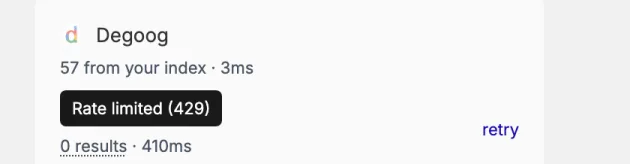
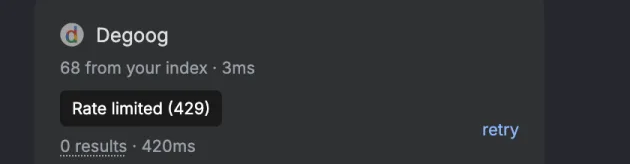
| Rate limited | HTTP 429. You are querying too fast from one IP. Slow down, add a proxy, or enable caching. |
| CAPTCHA challenge | An interstitial challenge page came back. Cloudflare is the usual culprit. |
| Blocked by an interstitial page | A JavaScript or consent wall instead of results. Very common with Google. |
| Could not read the response | The page loaded but the parser did not recognise it. Often means the engine changed its HTML and the extension needs an update. |
| Timed out | The engine was too slow. Raise that engine's timeout in Configure, Advanced, or leave it disabled. |
| Network error | The request never made it out. A classic cause is picking Curl Impersonate without the binary installed, and the server logs will say "No curl-impersonate binary found". |
| No usable response from this engine | Something came back, but nothing in it looked like results. |
Every failure has a retry link next to it that re-runs just that engine, which is much faster than reloading the whole search while you experiment.
The reason doesn't sit there in plain sight though. A failed engine just says 0 results with a dotted underline, and you have to hover it to get the tooltip.
Big G is the single most awkward engine to self-host against, and the Google engine gives you a choice about how hard to try (If I were you, I'd just settle for the Google CSE store version and leave it at that, it works and I wouldn't question it lol)
The Google engine needs the 4play (lolcat) transport.
Google now wants a real browser session for both of its results pages, so
over fetch, curl or curl-fallback you
get 403s or the "Blocked by an interstitial page" failure, whichever results
format you pick. 4play runs through a Firefox extension, and there is no
Chromium version, so you need Firefox running on a real desktop. If you can't
run 4play, install Google CSE from the Store instead, it works over plain
HTTP.
With 4play selected, the Results format option in Settings, Engines, Google, Configure picks which page to read:
- Lite results (the default) read the lightweight mobile page. Titles and snippets are thinner than the real thing.
- HTML results read the full desktop results page, with much better titles and snippets.
The engine's bang shortcut is !g.
Cloudflare-fronted engines
Ecosia will happily return a Cloudflare challenge page to a server-side request; the engine detects this and reports it as a CAPTCHA challenge rather than pretending it found nothing. Startpage can do the same. If you want these engines to work consistently, route them through FlareSolverr, or one of the stealth-browser transports below.
Startpage also has an Anonymous View toggle, which makes result links open through Startpage's own proxy so the destination site never sees your IP. Nice touch if privacy is why you are here.
Choosing a transport
You pick a transport per engine, in Settings, Engines, Configure, Advanced, Outgoing HTTP client. Working roughly from "no setup" to "most convincing":
| Transport | Where it comes from | What it gives you |
|---|---|---|
| Fetch | Built in | Bun's native fetch, with SOCKS and HTTP proxy support. Fastest, least convincing. |
| Curl | Built in |
Shells out to the curl binary. A useful TLS fallback when
native fetch gets rejected.
|
| Curl Fallback | Built in | Tries native fetch first, automatically retries with curl on 403, 429, 502, and 503. A sensible default when you cannot decide. |
| Curl Impersonate | Built in, needs the binary |
Uses
curl-impersonate
to mimic Firefox's TLS fingerprint. For sites that block on the TLS
handshake rather than on headers. Needs the binary on PATH,
but it shows up in the list either way, so if you pick it without the
binary the engine just fails with "Network error".
|
| FlareSolverr | Store | Routes through a FlareSolverr instance to clear Cloudflare challenges. |
| Browserless | Store | Fetches through a self-hosted Browserless Chromium and returns rendered HTML. Good for engines that need JavaScript to run. |
| CloakBrowser | Store |
Self-hosted stealth Chromium that patches bot-detection signals
(navigator.webdriver, canvas, CDP leaks) at the C++ level.
|
| Camoufox | Store | The same idea with stealth Firefox. |
| 4play (lolcat) | Store | A real browser on your own machine, lending its session to the server. The strongest option, and the one Google's HTML mode expects. The older degoog-4play transport is deprecated. |
To actually switch an engine over:
-
Open Settings > Engines and hit Configure on the engine that keeps failing.
-
Flip the Advanced switch on. The transport picker is hidden until you do.
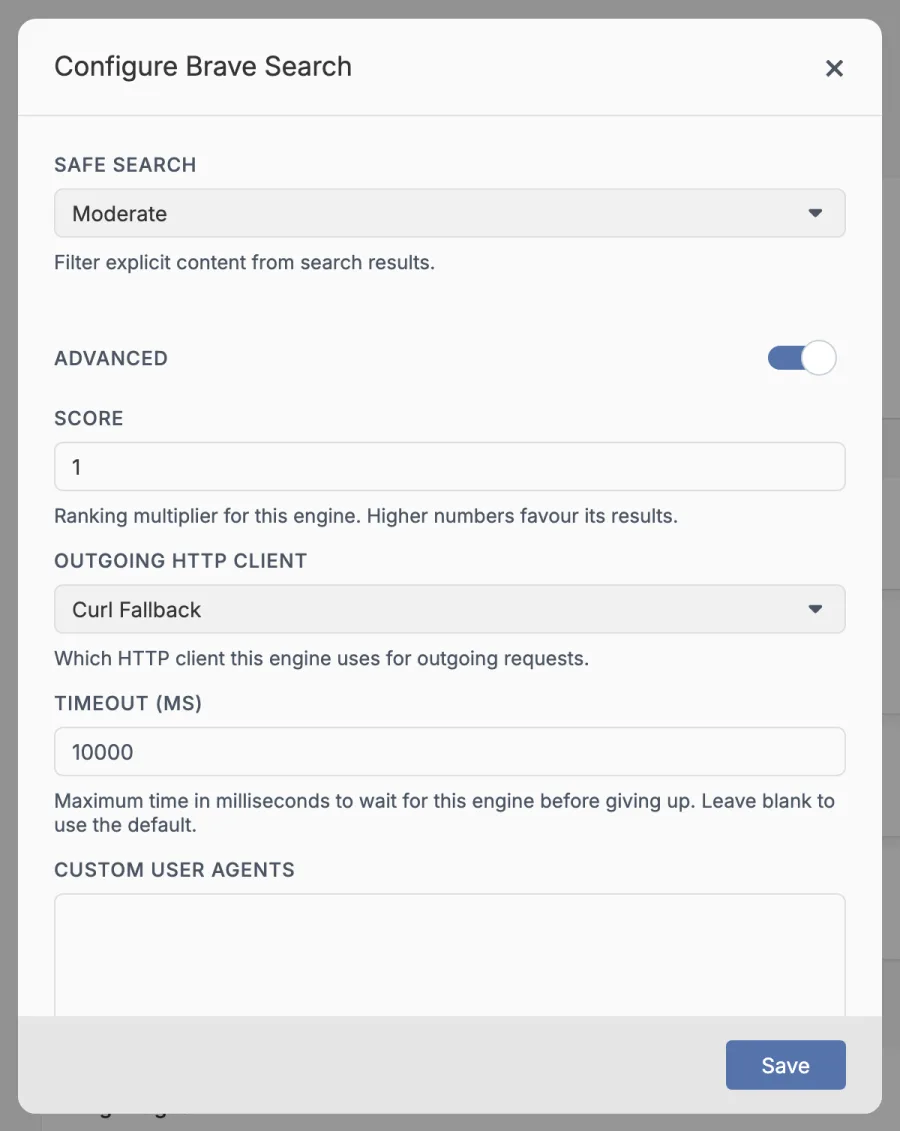
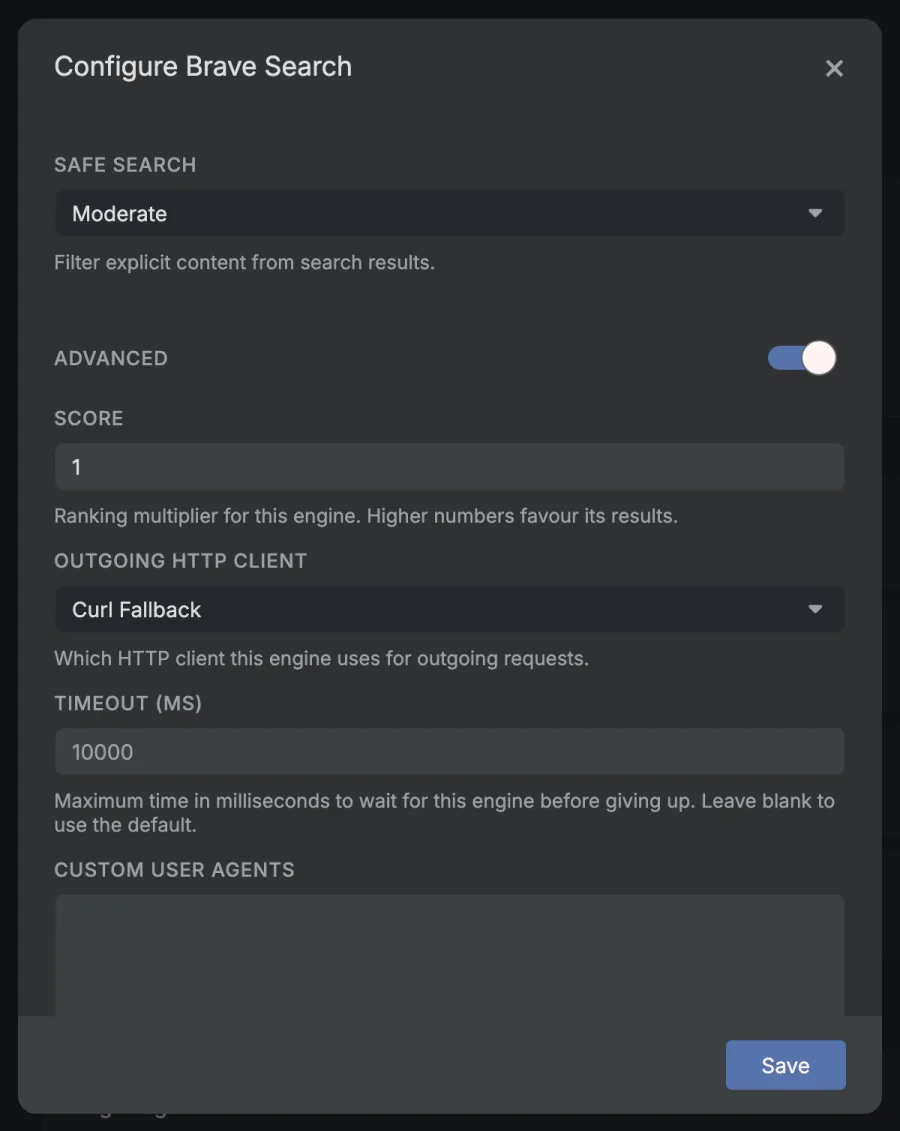
The transport lives under Advanced, in Outgoing HTTP client. -
Pick a transport in Outgoing HTTP client and press Save.
-
Hit retry next to the engine in the results sidebar to try it without rerunning the whole search.
Installing curl-impersonate
On macOS:
brew tap shakacode/brew
brew install curl-impersonate
On Linux, drop a release binary onto your PATH:
curl -fsSL https://github.com/lexiforest/curl-impersonate/releases/download/v1.2.2/curl-impersonate-v1.2.2.x86_64-linux-gnu.tar.gz \
  | tar -xz -C /usr/local/bin curl_firefox133
chmod +x /usr/local/bin/curl_firefox133
The Degoog image is Alpine-based, so inside Docker you need the
-linux-musl release, and bash installed first
because the curl-impersonate binaries are bash wrappers:
services:
  degoog:
    image: ghcr.io/degoog-org/degoog:latest
    entrypoint: >
      sh -c "apk add --no-cache bash && curl -fsSL https://github.com/lexiforest/curl-impersonate/releases/download/v1.2.2/curl-impersonate-v1.2.2.x86_64-linux-musl.tar.gz
      | tar -xz -C /usr/local/bin || true && exec /entrypoint.sh"
    volumes:
      - ./data:/app/data
    ports:
      - "4444:4444"
    restart: unless-stopped
4play
4play lets Degoog use a real Firefox session for stubborn engines that protect hard against server-side requests. Degoog spawn a websocket server in parallel and talks to the official 4play Firefox extension itself, so you do not need the lolcat's provided sample Node server for Degoog.
Credit for 4play goes to lolcat. Read the upstream 4play setup notes too, especially the real desktop and display requirements.
Setup
- Install 4play (lolcat) from the Degoog Store.
- Run Firefox ESR or current Firefox on a real desktop session. Use a laptop screen, powered monitor, or EDID adapter. Avoid headless/software-rendered Firefox if you want this to help.
- Install the official 4play extension in a clean Firefox profile. Allow private windows and automatic updates.
-
In Degoog, open
Settings, Transports, 4play (lolcat), Configure. Set a strong
password and copy the WebSocket path shown there. The official Store path is
normally
/ws/degoog-org-official-extensions-lolcat-4play-transport, but copy your own setting instead of guessing. -
Put your Degoog WebSocket URL and password into the Firefox extension. Set
the timeout to
30000. The extension dot should turn green. - Pick 4play (lolcat) as the Outgoing HTTP client for the engines that need it.
Settings worth knowing
- Container isolation: keep browser state split per origin. Leave it on unless you know you want shared cookies.
- Max containers: how many origins can stay ready at once.
- Origin warmup query: the harmless search used before Degoog replays your real query.
- Background warmup: re-warms origins that already used 4play. It does not blindly warm every engine.
-
Valkey: with
DEGOOG_VALKEY_URL, primed sessions can survive Degoog restarts.
Status plugin
Install 4play status and run !4play. It shows
the Firefox connection, primed sessions, alive containers, CAPTCHA tabs, and
background warmup state. It can also test the transport or clear sessions. The
status card is admin-only by default.
4play is VERY powerful, but configuring it properly is crucial to stay private. Firefox talks to engines during warmup, and Degoog gets the cookies and headers it needs to reuse that browser session. That is the trade: better scraping, more trust placed in your own setup. Keep the WebSocket private, set a password, and proxy it properly if Firefox is not on the same box. If privacy is the goal, put both Firefox and Degoog's outgoing requests behind proxies or a VPN you trust. Otherwise you are mostly making scraping work better, not making it more private.
What to do when you see Gandalf
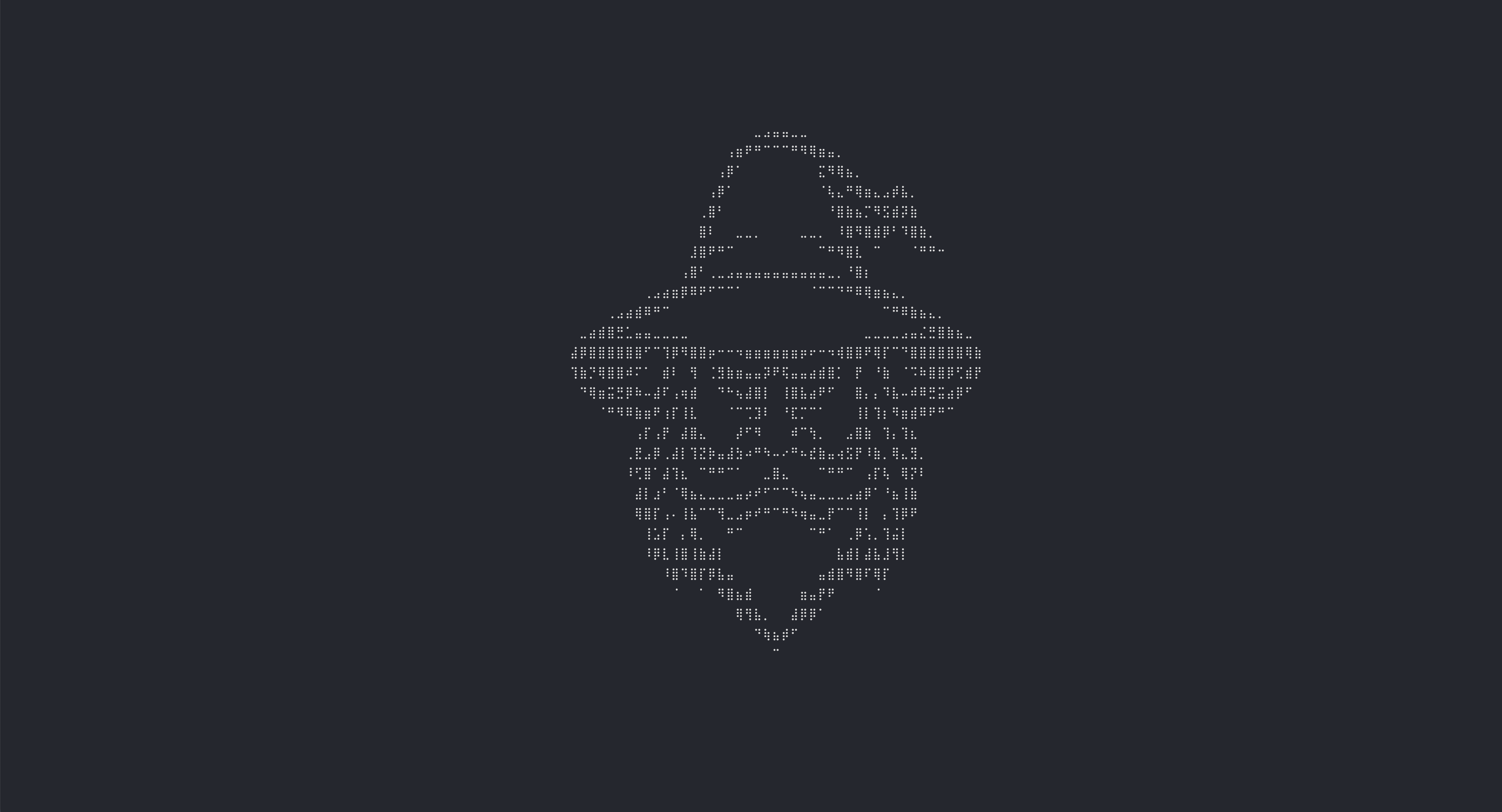
If the homepage shows ASCII art of Gandalf instead of the search box, you have been banned by the honeypot. Your instance is not compromised. Gandalf is Degoog's way of telling a banned IP to go away, and it is working as designed.
The honeypot serves bait paths that look like exposed secrets
(.env, admin.php, WordPress login, and similar). No
real visitor requests them. Bots do, and the IP that requested the trap gets
added to the blocklist. Check your logs for lines like
WARN [honeypot] trap hit: /admin.php from … to confirm.
The common surprise is running behind a reverse proxy (Traefik, nginx, Caddy,
Pangolin, and so on) without telling Degoog to trust forwarded headers. By
default Degoog ignores X-Forwarded-For, so every request looks
like it comes from the proxy's internal address. A bot hits the trap, that
shared address gets banned, and suddenly you see Gandalf even though you never
touched those paths yourself. The same misconfiguration also makes rate limits
apply to everyone at once; see
Everyone is getting rate limited.
To get back in:
-
Unban yourself. From another device or network, open
Settings, Server, Bot Control and remove your IP from
Blocked IPs. You can also edit
data/blocklist.jsondirectly if settings are unreachable. -
Fix proxy IP detection. If Degoog sits behind a reverse
proxy you control, set
DEGOOG_DISTRUST_PROXY=0in your compose file or environment so Degoog sees each visitor's real IP. Only do this when the proxy strips or rewrites incoming forwarded headers; leave the default if Degoog is exposed directly to the internet. Details are in Environment variables and Bot control. - Disable the honeypot if you do not need it. On a personal or LAN-only instance, turn off honeypot traps in Settings, Server, Bot Control. That stops Gandalf entirely.
Recent Degoog versions no longer ban private and localhost addresses when a
trap fires; they log a warning instead. If Gandalf keeps coming back after
you set DEGOOG_DISTRUST_PROXY=0, double-check that the variable
is in the right service block, pull the latest image, and read the release
notes when you upgrade.
Smaller things worth knowing
- Fewer engines is often better. Every enabled engine is a request on every search. Three good engines beat nine flaky ones, and your sidebar timings will tell you which is which.
- Per-engine scores tilt the ranking. Each engine has a Score multiplier in Configure, Advanced. Raise engines you trust, lower engines that return junk. The full math is in How aggregation works.
- Per-engine timeouts stop one slow engine ruining everything. Same panel.
- Domain scoring is the blunt instrument for result quality. It adds or removes plain points after Degoog has merged results. Use it to push favourite documentation sites up and content farms down.
- Streaming makes searches feel faster because results appear as each engine answers instead of waiting for the slowest. It is not compatible with the POST search method, and you cannot have both.
- Valkey is worth it if you run more than one replica, or a public instance. It shares the search cache and propagates settings changes instantly.
- The indexer quietly improves over time. If the same pages keep proving useful, letting the indexer remember them means they resurface even when an upstream engine is having a bad day.
- Restart when Degoog asks. Some extensions show a "Restart required" window when they need it, with a button that does it for you. Settings > Server > Restart server does the same if you clicked "Not now".