Degoog Troubleshooting
The things that actually go wrong, and what to do about each one.
Every search returns nothing
Almost certainly no engines are installed. Degoog ships with none, on purpose.
Go to Settings, Store, install an engine or two, then enable them in Settings, Engines. The results page will tell you this directly with a link to the Store if you have zero engines.
If that doesn't work, and there's no info in the logs, the next likely culprit is DNS, you can use this handy site to check if that's the case: https://isitdns.com
One engine keeps failing
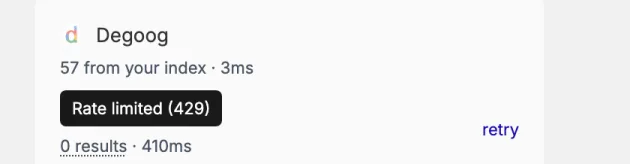
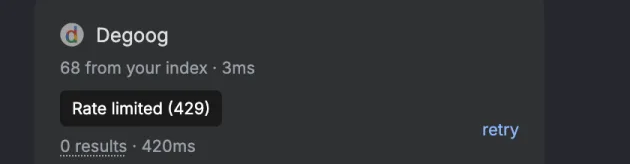
Look at the sidebar. Degoog names the engine and the reason, and gives you a retry link to re-run just that engine.
The reason is a tooltip, so hover the dotted 0 results under the engine's name to see it.
- Blocked by the engine or Blocked by an interstitial page: it needs a different transport. This is the common case with Google. See Tips and tricks.
- CAPTCHA challenge: usually Cloudflare. FlareSolverr or a stealth browser transport.
- Rate limited: you are querying too fast from one IP. Enable a proxy, search less aggressively, or leave the cache to do its job.
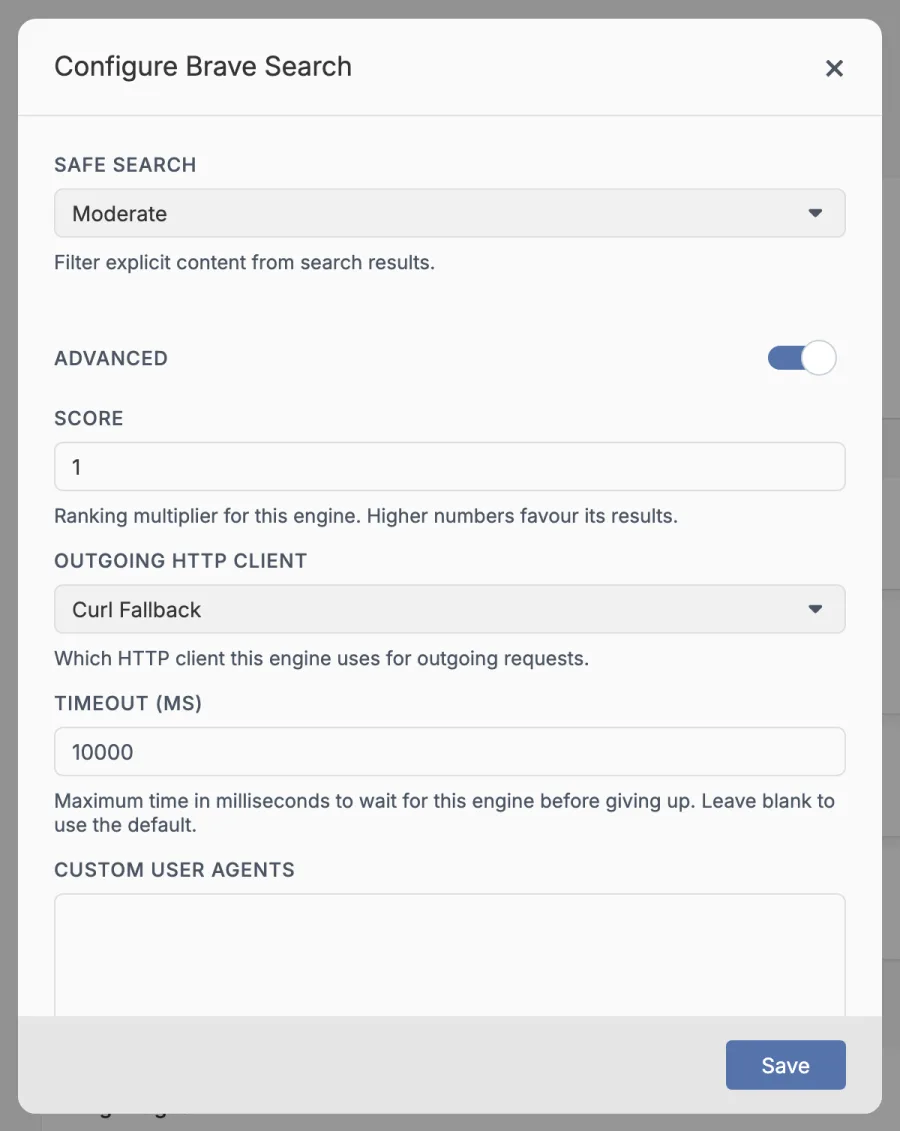
- Timed out: raise that engine's timeout in Configure, Advanced, or disable it.
- Could not read the response: the site changed its markup and the engine extension needs updating. Check Settings, Store for an update.
- Network error: the request never got out. If you just switched that engine to Curl Impersonate, the binary probably isn't installed. The list offers it either way, and the server logs will say "No curl-impersonate binary found".
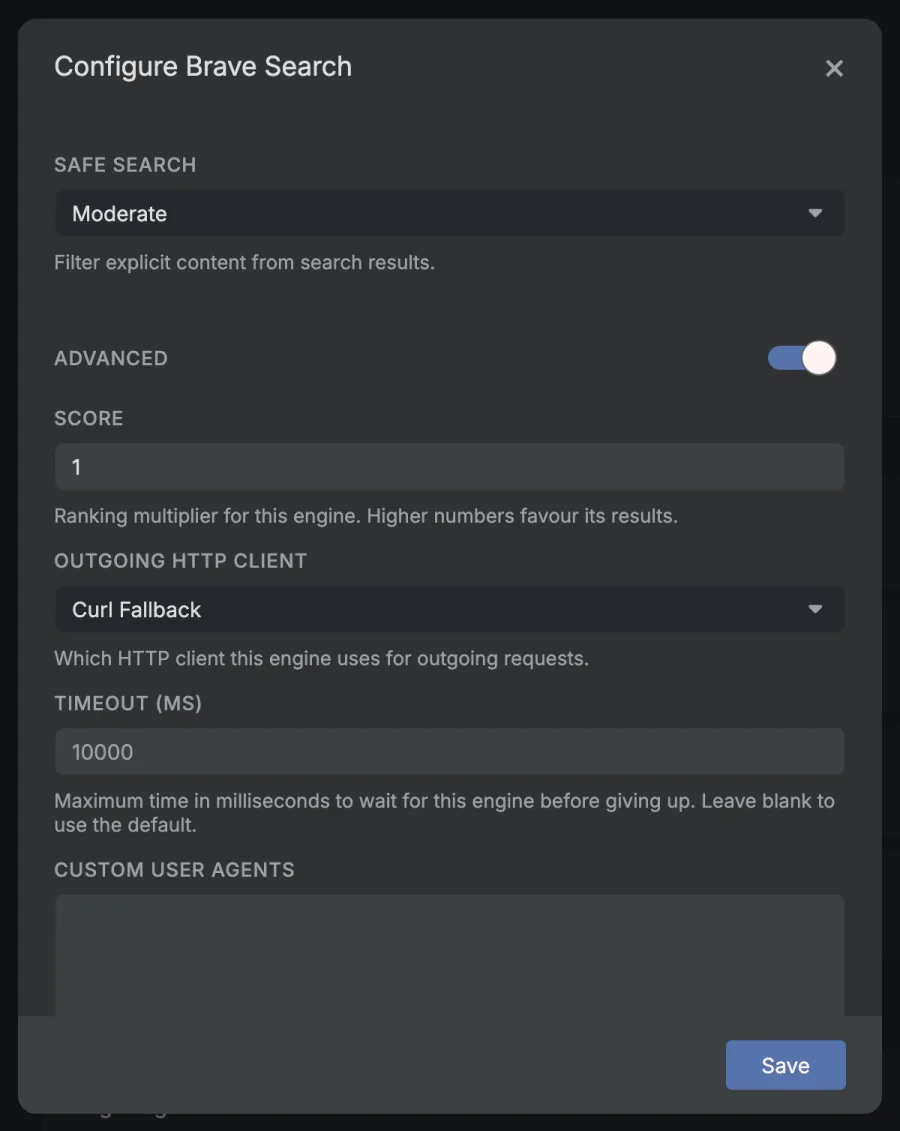
The transport is in the engine's Configure window, behind the Advanced switch.
No suggestions under the search box
No autocomplete provider is installed. They are separate from engines and, like engines, none ship by default. Install one from Settings, Store and enable it in Settings, Autocomplete.
If a provider is installed and enabled but nothing appears, check that the provider itself is reachable from your server and that autocomplete rate limiting has not kicked in.
The favicons disappeared
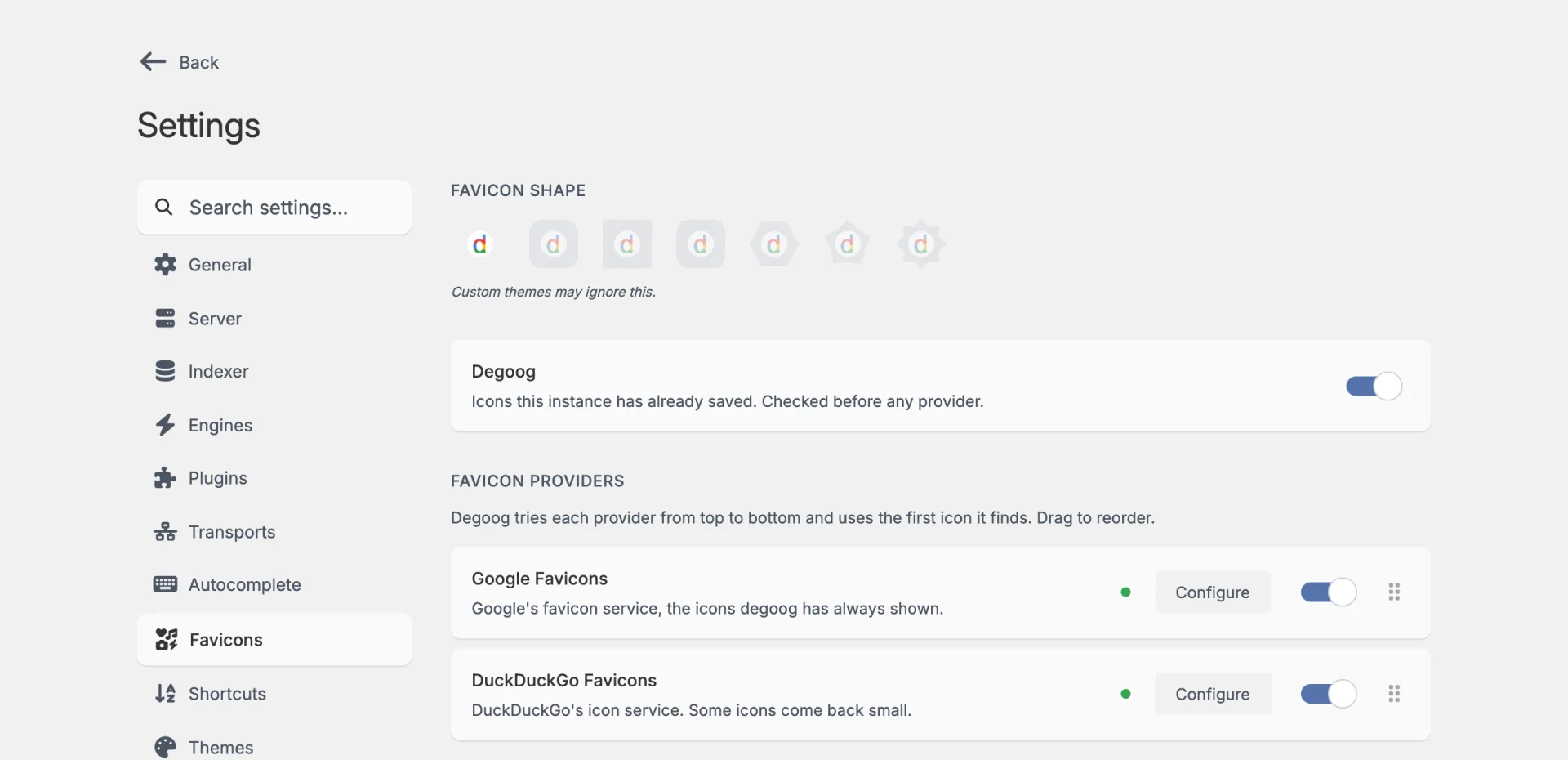
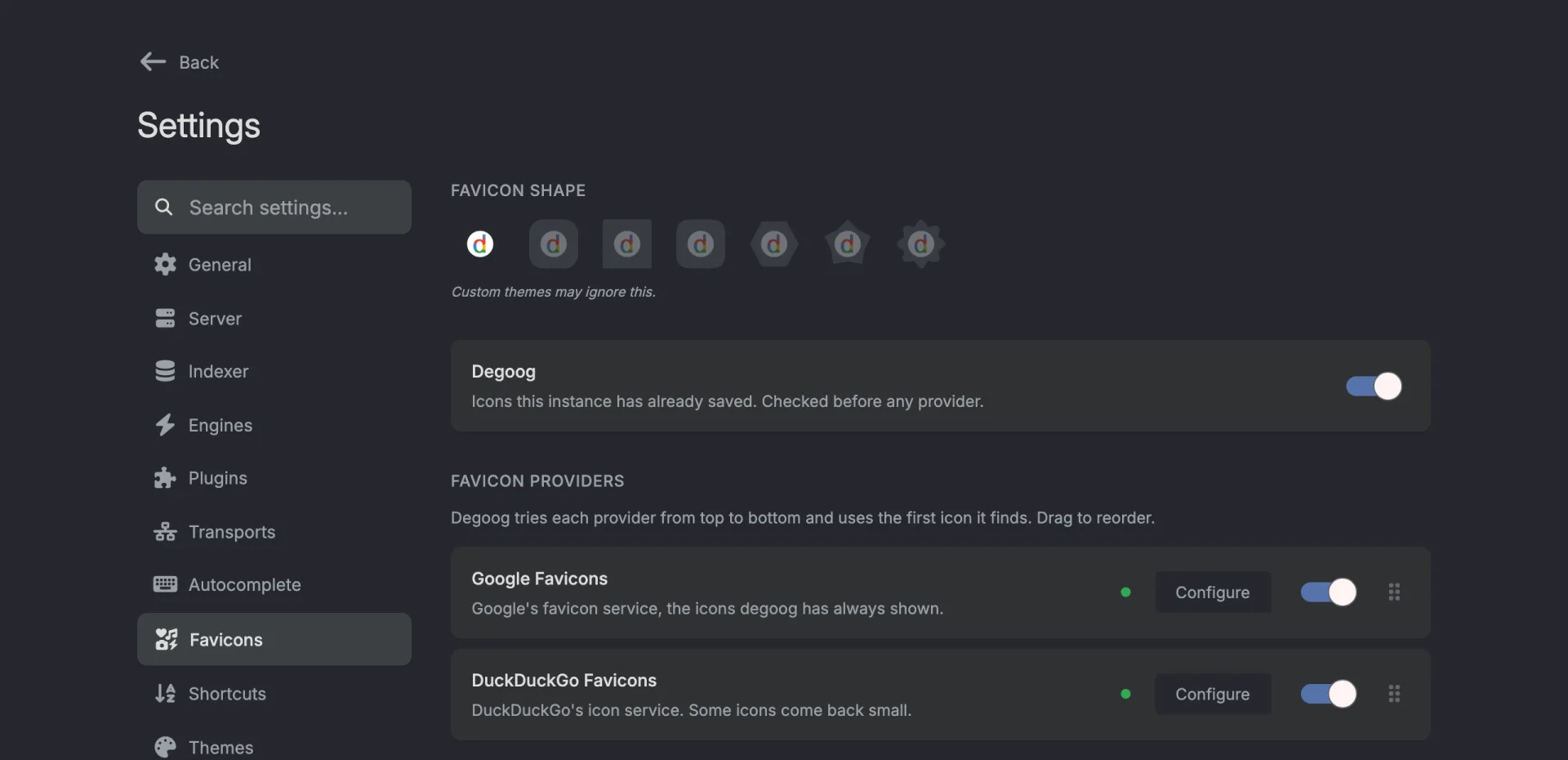
A dashed circle with a "No favicon extension installed" tooltip on every result means no favicon provider is enabled and the favicon store is off. Install one from the official store, which has Google, DuckDuckGo, Kagi, Yandex, Site favicon and Identicon, and switch it on in Settings, Favicons. The engine icons in the sidebar come back too.
Degoog installs Google and DuckDuckGo for you once. If you removed them since, it leaves them removed, so install them again yourself.
First letters in place of icons mean providers are enabled but none had an icon for those sites. Add another provider or move a different one to the top. For a single site, sign in and pick Refresh favicon from the result's menu.
If icons look cropped or sit on a tile you didn't expect, check Favicon shape in Settings, Favicons. Circle is the classic look.
You cannot get into Settings
-
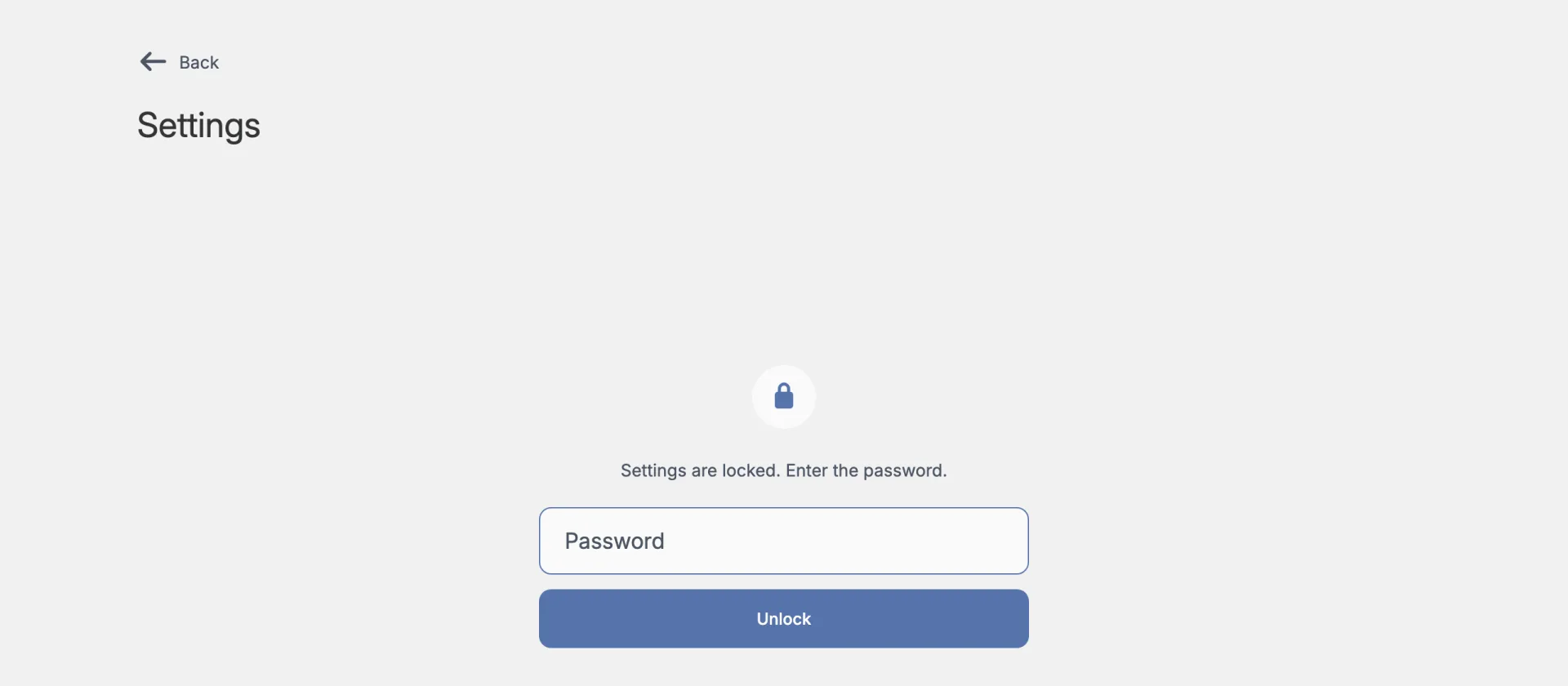
A password prompt you did not expect. If you never set
DEGOOG_SETTINGS_PASSWORDS, Degoog generated a one-off password and printed it in the server logs at startup, under a "Temporary settings password" banner. It changes on every restart, so set the environment variable if you want a stable one. -
Settings returns 404, or only a cut-down page. The path may have been moved with
DEGOOG_SETTINGS_PATH, in which case/settingsonly shows the visitor page and the full one lives at your custom path. On a public instance the admin page lives at/admin, and it only responds at all if a password is configured. Without one it returns 404 with no hint that it exists, which is intentional. -
You get a cut-down settings page. That is
DEGOOG_PUBLIC_INSTANCE=true. Visitors see appearance, search options, and engine toggles only. Admin lives at the separate path. -
"Settings authentication is misconfigured." The gate is set
to a middleware plugin that is not loaded, for example after uninstalling an
SSO plugin. Fix the gate setting or set
DEGOOG_SETTINGS_PASSWORDS.
You banned yourself
If you are seeing a 403 page instead of Degoog, or ASCII art of Gandalf on the homepage, the bot trap caught you. That can happen with unusual clients, aggressive prefetching, or a reverse proxy that hides real client IPs from Degoog. See What to do when you see Gandalf for the full walkthrough.
From an unaffected device or network, open Settings, Server, Bot Control and unban your IP from the Blocked IPs list. If it keeps happening, turn off browser verification (CSS HMAC) or the honeypot entirely while you investigate.
Everyone is getting rate limited
Rate limiting is per client IP. Behind a reverse proxy, Degoog defaults to distrusting forwarded headers, which means every request can look like it comes from the proxy, so a single limit is shared by everyone.
Set DEGOOG_DISTRUST_PROXY=0 only when Degoog
sits behind a proxy you control and that strips or rewrites
X-Forwarded-For on incoming requests. If Degoog is exposed
directly to the internet, leave it alone: trusting those headers would let any
client claim any IP.
An extension installed but nothing happened
Work down this list:
- Is it enabled? Engines, autocomplete providers, and themes need switching on or selecting after install.
- Does the dot next to Configure say Needs configuration when you hover it? Some engines want an API key or a service URL first.
- Does it show a restart warning? The Restart required window has a button, and so does Settings > Server > Restart server.
- Does it show Requires a newer version of Degoog? Update Degoog itself.
Thumbnails are missing
Result images are fetched by your server through an image proxy, which blocks private and local addresses by default. If your engine points at something on your own network, such as a Jellyfin or Meilisearch instance, its thumbnails will not load until you turn on Allow local network images in Settings, Server and add a regex pattern for that host.
The UI looks broken
- Switch back to the built-in theme in Settings, Themes. It is always available.
- Clear or fix Settings, Server, Custom CSS. It loads last, so it overrides everything.
- Disable recently installed plugins, particularly slot plugins that inject their own markup.
- Hard-refresh. Degoog registers a service worker, so a stale cached asset can survive a normal reload.
A setting will not stick
- Theme, search options, and engine selection are stored in your browser. Clearing site data resets them, and they do not follow you to another device unless someone published them as instance defaults.
- On a public instance, server-side mutations return Unauthorized by design.
- If a list is too large to render, Degoog says so and asks you to edit the file directly. That is expected behaviour, not a save failure.
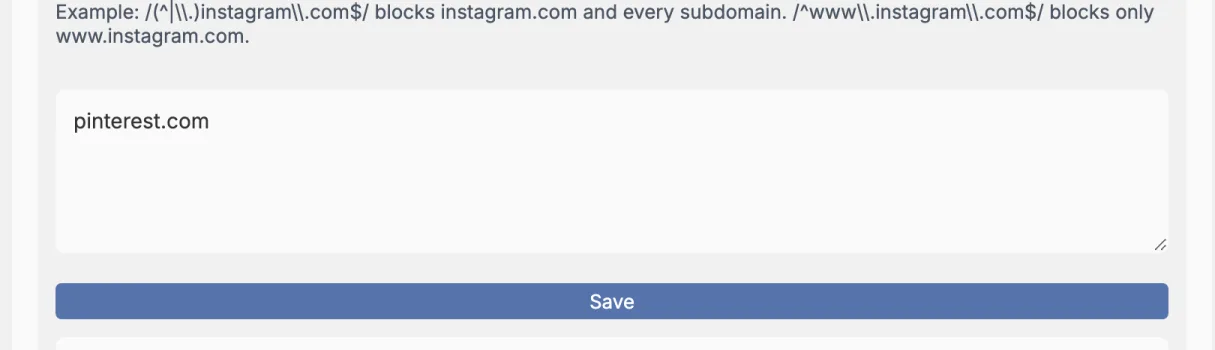
- On the Server tab only switches and drop-downs save on their own. Text boxes, lists and number fields grow a Save button the moment you type in them, and nothing sticks until you press it.
Block, replace and score are missing from the result menu
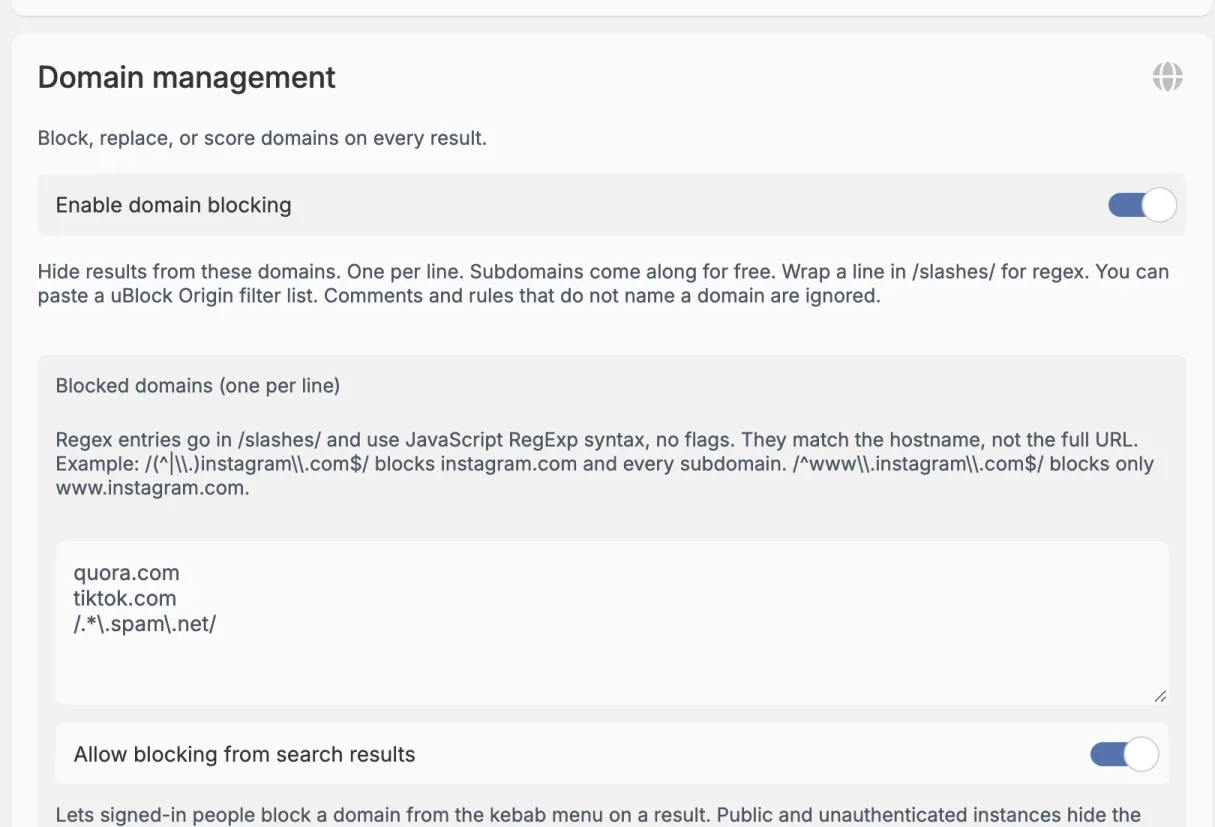
Each of those needs two switches in Settings > Server > Domain management. Enable domain blocking turns the rules on, and Allow blocking from search results is what puts the option in the three dots menu on each result. Same deal for replacing and scoring. Until then the menu only has Refresh favicon, and you need to be signed in to see it at all.
Streaming is on but results still arrive all at once
Check whether you have Use POST for searches. Breaks streaming. enabled in your search options. The two are incompatible, and POST wins. The setting even says so in its name.
Some buffering reverse proxies also swallow server-sent events. If streaming works locally but not through your proxy, that is where to look, and the Compatibility / low resource preset exists precisely for this.
Startup and install problems
-
Permission errors on
data/. The container runs as1000:1000by default. Runsudo chown -R 1000:1000 ./data, or setPUIDandPGIDto match your host user. -
Certificate errors on a native install. Install your
distribution's
ca-certificatespackage. -
The Store cannot clone repositories. A native install needs
giton the host. Several transports also needcurl. -
Nothing resolves under a sub-path. Set
DEGOOG_BASE_URLto the path you serve from, for example/degoog.
Reading the logs
When the answer is not in the UI, it is in the logs. Set
LOG_LEVEL=debug for the full picture, including per-plugin
execution times. Where to read the output for each deployment style is covered
in
Viewing server logs.
These docs do not search across pages
Cross-page search fetches the other pages over HTTP, which browsers block from
file:// URLs. Serve the docs properly (npm run serve
in the docs project) and it works.
Still stuck
The Discord community is active and friendly, and GitHub issues is the right place for genuine bugs. Please have a look through these docs first; a fair number of issues turn out to be "no engines installed".