Degoog Store and extensions
Add a repository, install what you want, keep it updated, and understand what you are trusting.
How the Store works
There is no central marketplace and no server between you and the extensions.
A store repository is just a git repository whose
package.json lists what it publishes. You add its URL, Degoog
clones it, and its catalogue appears.
That means anyone can publish a store, including you. It also means nobody is vetting the code on your behalf.
Adding a repository
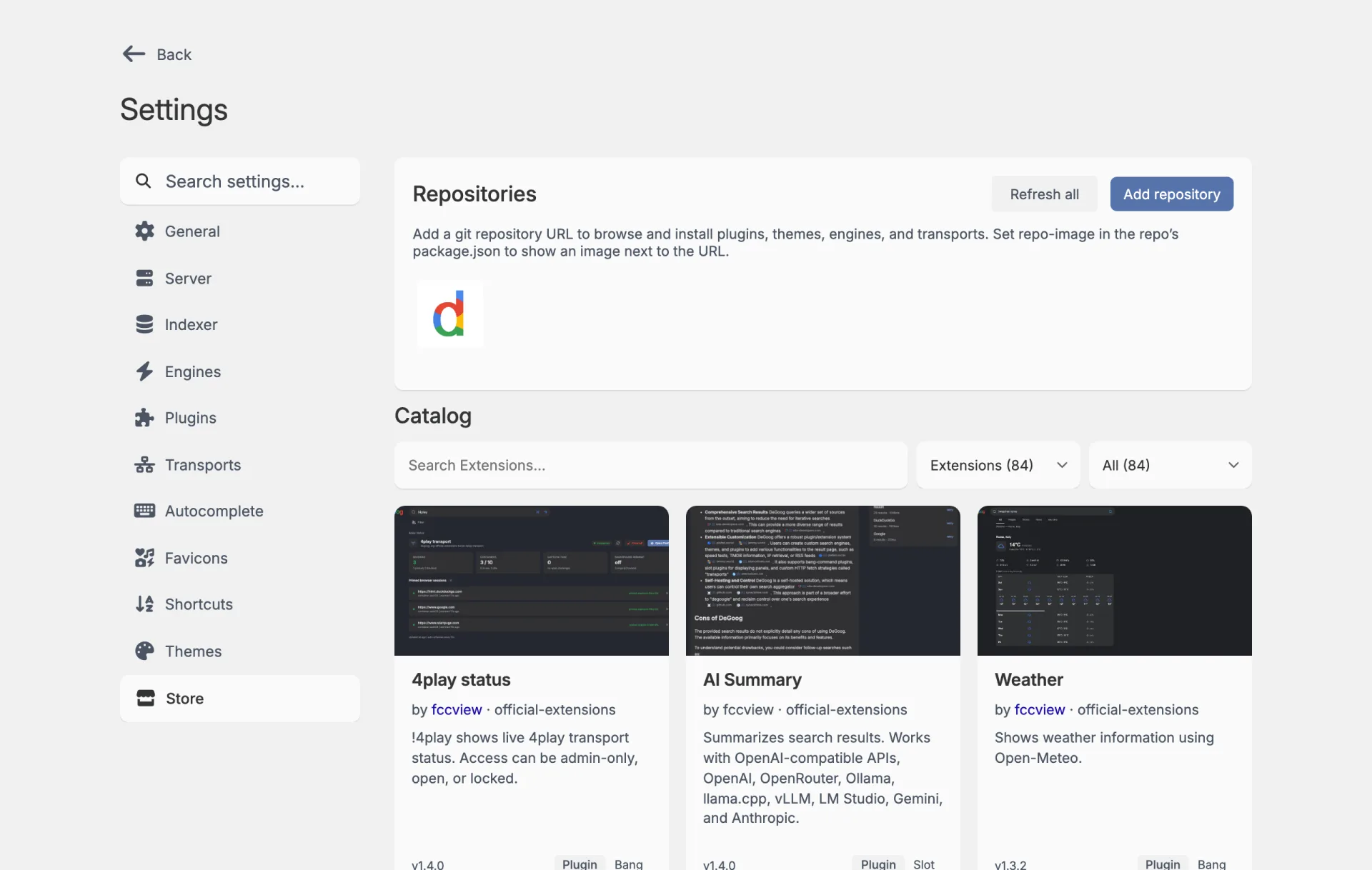
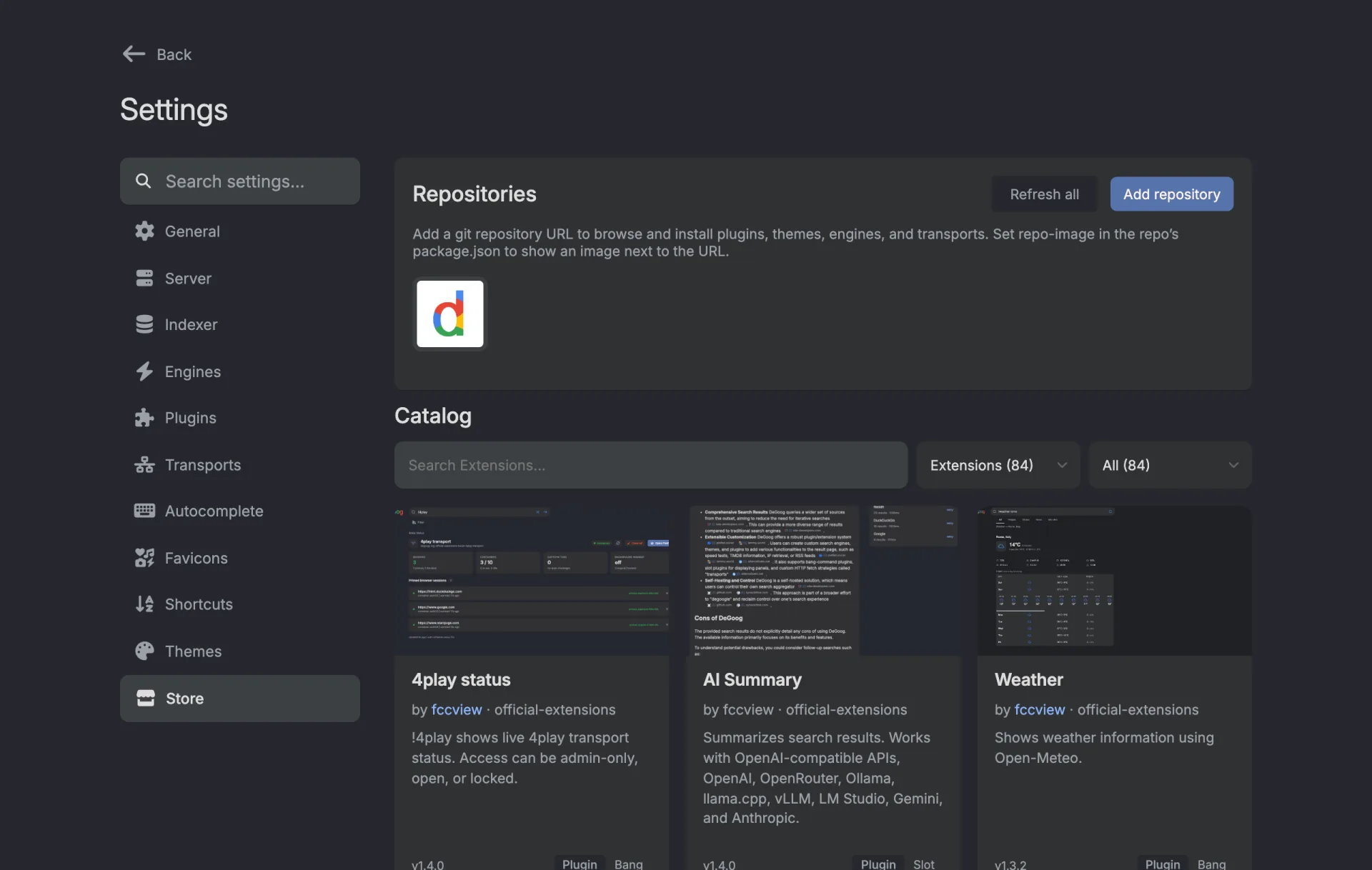
- Open Settings, Store.
-
Press Add repository, paste a git URL into the box that
shows up and press +.
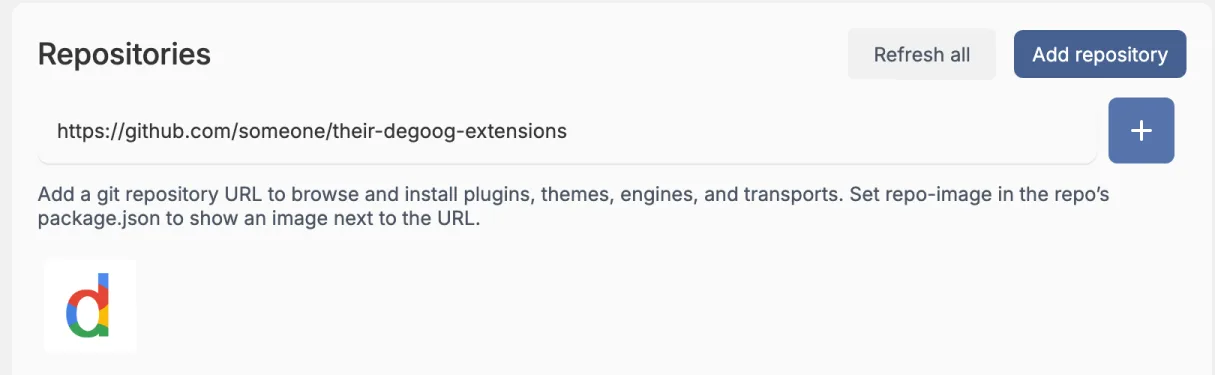
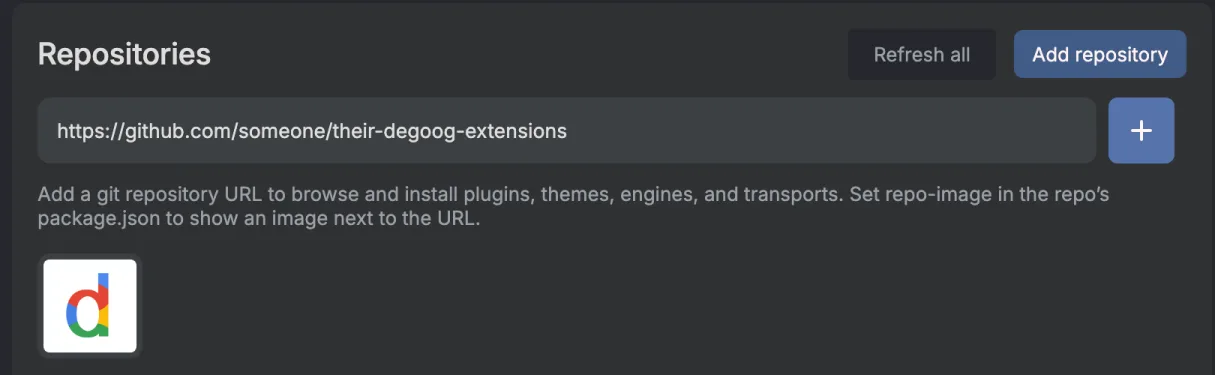
The URL box that Add repository opens. - The catalogue below fills in with everything that repository publishes.
The two you probably want:
-
Official:
https://github.com/degoog-org/official-extensions. The only store curated and maintained by the Degoog team. These get automatically added to your store when you first install Degoog. - Community: browse the community extensions list for repositories published by other people.
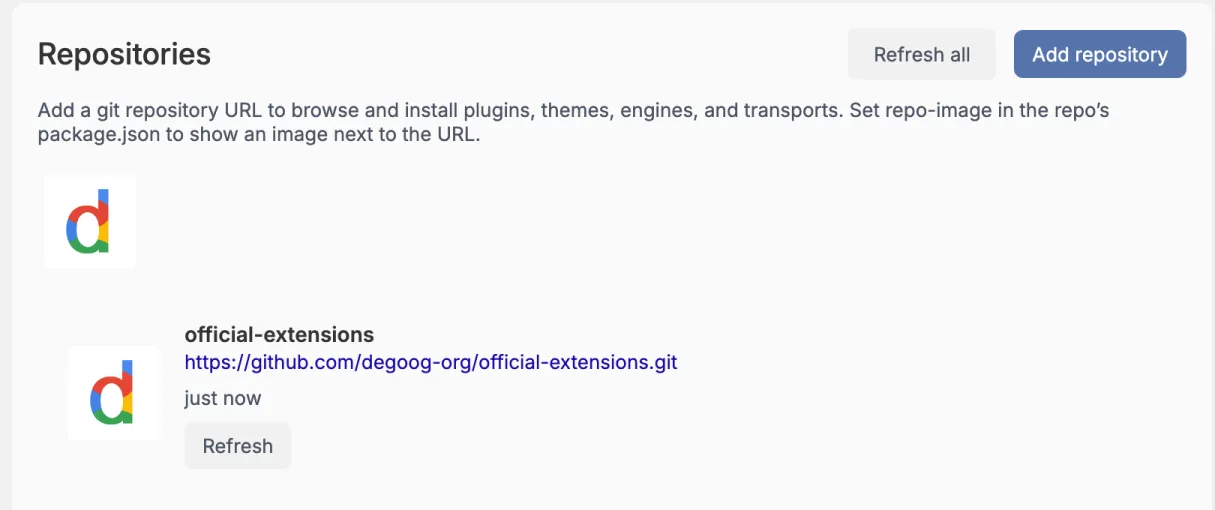
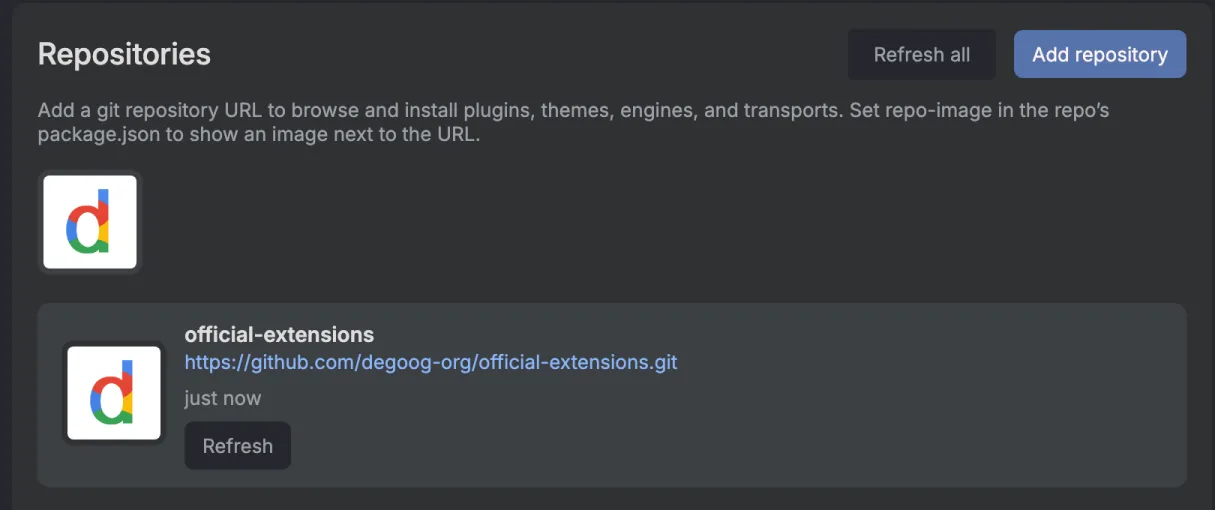
Repositories show up as a row of logos. Click one to open it, and it shows when it was last refreshed and has a Refresh button; Refresh all does the lot. Remove deletes a repository, but only once you have uninstalled everything you installed from it. The official one can't be removed, so it has no Remove button.
Finding things
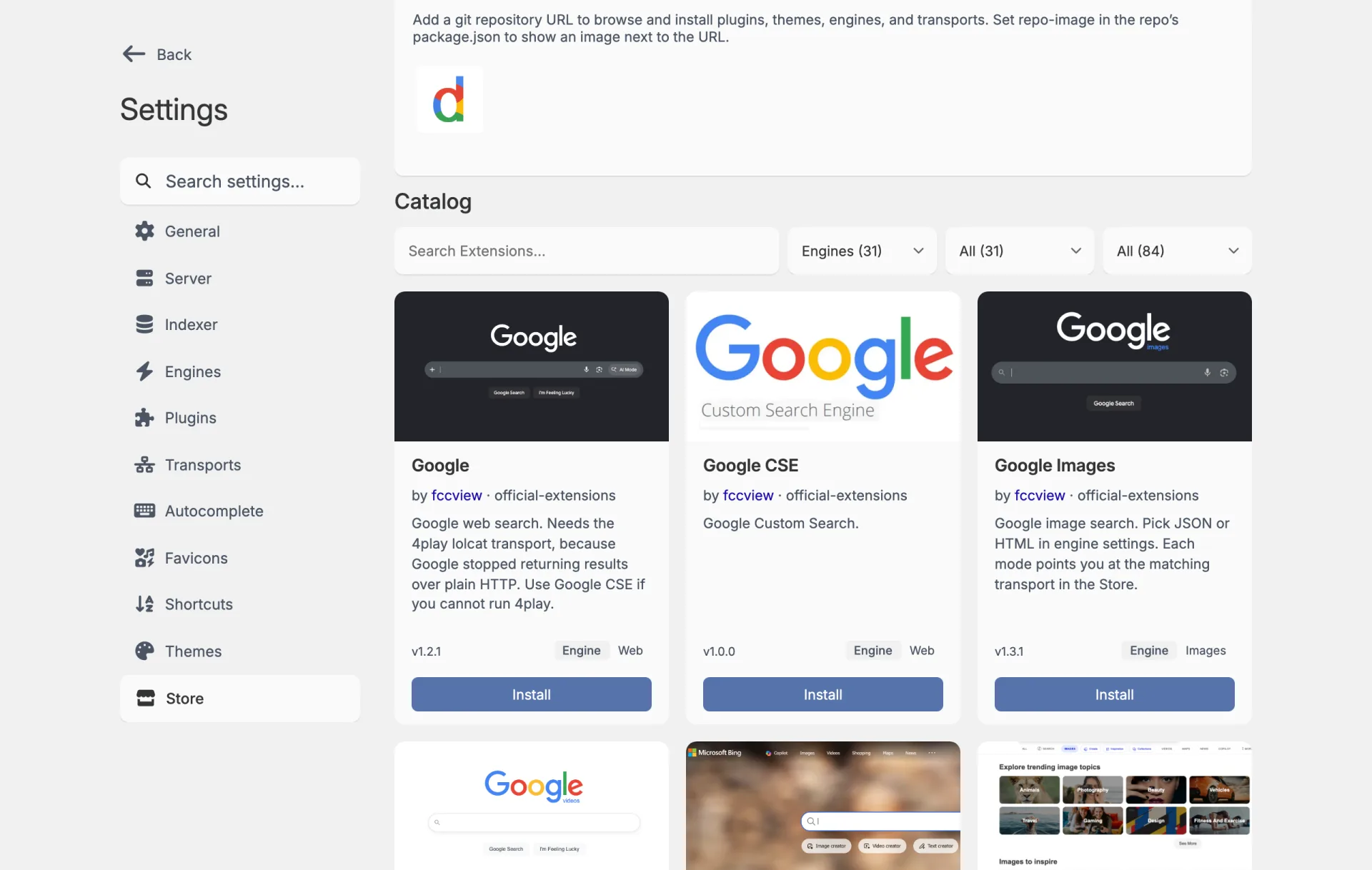
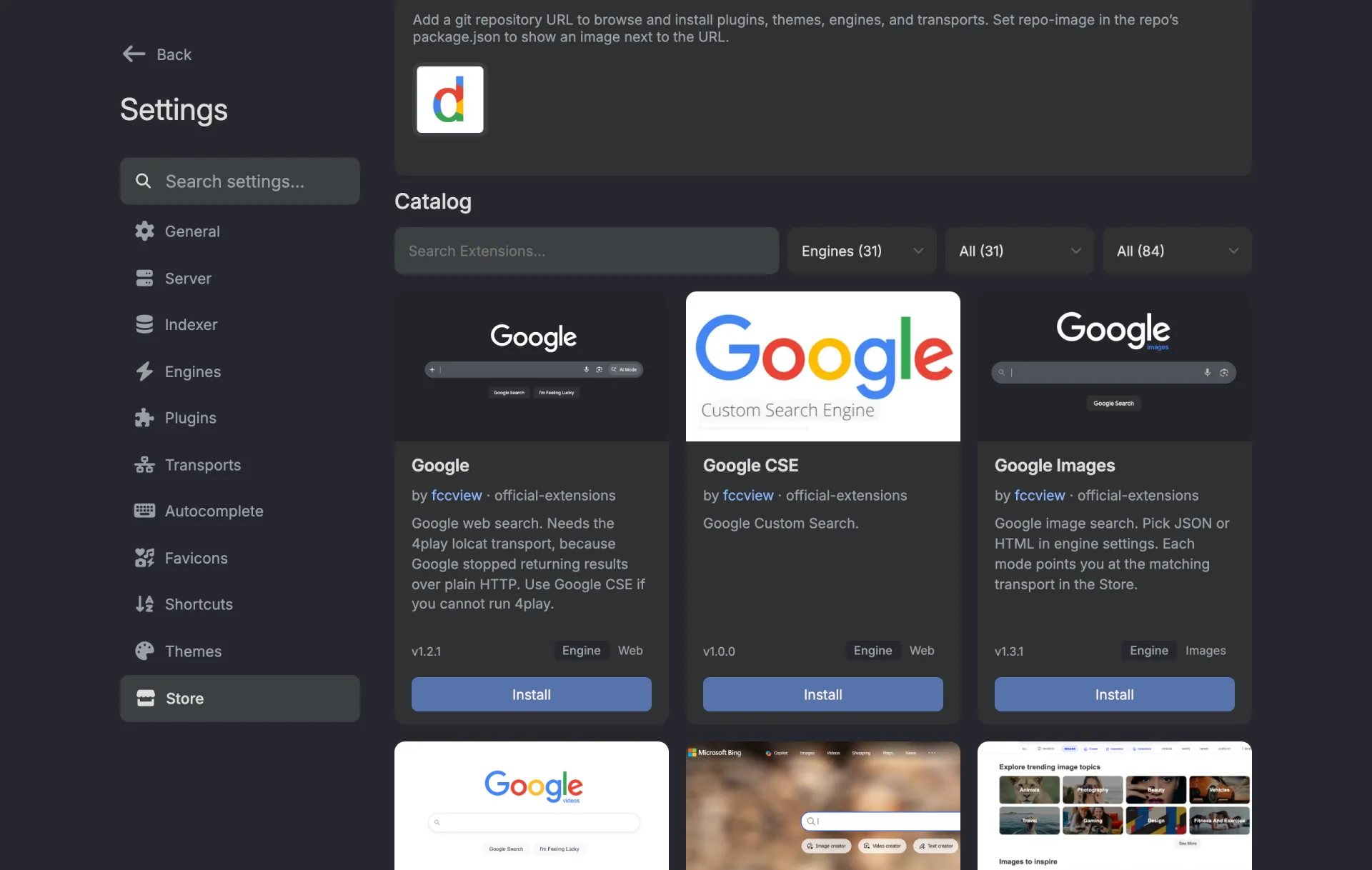
The catalogue has a search box and two filters: extension type (Plugins, Themes, Engines, Transports, Autocomplete, Favicons, Shortcuts) and, for plugins, a sub-type filter (Bang, Slot, Search tab, Search bar). Extensions with screenshots get a gallery you can open in a lightbox.
Engines get a sub-type filter too, by search type (Web, Images, News and so on), and the last drop-down filters by whether you have it installed.
The four plugin sub-types, in plain terms:
-
Bang adds a
!command. See Bangs and commands. - Slot adds a panel above your results, below them, or in the sidebar, shown only when your query matches. The AI Summary, TMDb, Math, GitHub, and RSS plugins all work this way.
- Search tab adds a whole extra tab to the results page.
- Search bar adds a control next to the search box itself.
Plugins can also be interceptors (which rewrite your query before searching, like the Spell Check plugin), middleware (which can gate the whole settings area, for example to put it behind a login), or routes (which add HTTP endpoints).
Installing, updating, removing
Install is one button. Installing a plugin shows a confirmation first, because plugins run code on your server.
Once it's in, the card gets a green dot and an Uninstall button where Install used to be.
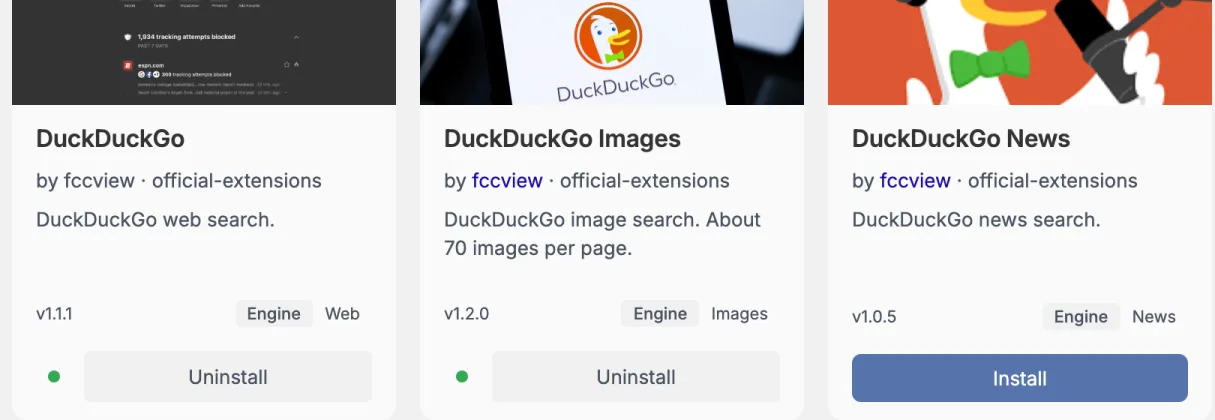
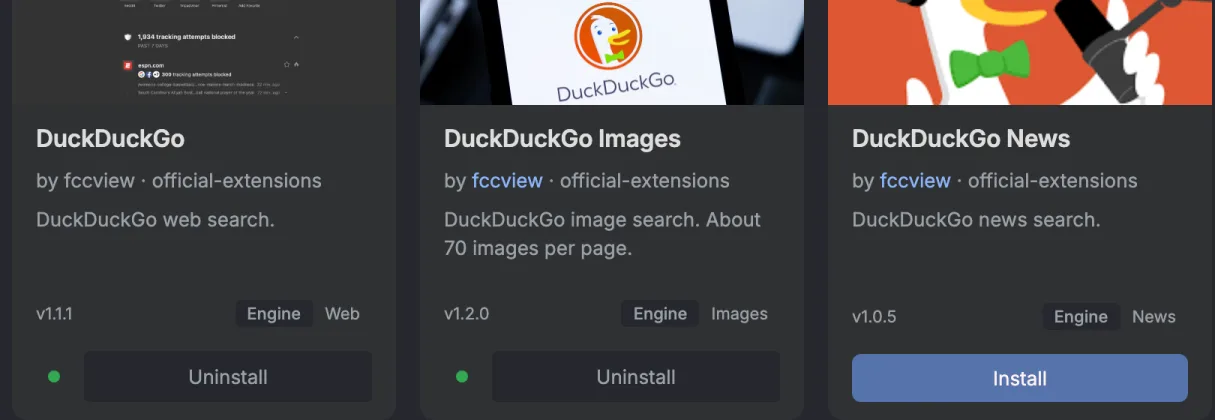
When newer versions exist, the Store shows an update count and an Update all button. Individual items get their own Update.
After installing, go to the matching tab to check it. Engines and autocomplete providers come switched on, themes need selecting; some need configuration before they do anything. Hover the dot next to Configure and it tells you if one needs configuration.
Favicon extensions supply the icon next to each result. Without one, and with the favicon store off, every result shows a "No favicon extension installed" placeholder. The official store has Google, DuckDuckGo, Kagi, Yandex, Site favicon (experimental) and Identicon, which works offline. Install one or two and set the order in Settings, Favicons.
Some extensions need a server restart to load properly. Degoog shows a "Restart required" pop-up with a button that does it, or you can hit Restart server later from Settings, Server.
Themes
A theme restyles the entire UI: templates, CSS, fonts, and assets. Degoog ships one built-in theme and the official store adds several more, including one styled after this very sexy documentation site.
For a smaller tweak than a whole theme, Settings, Server, Custom CSS injects your own CSS into every page. It loads after theme and plugin styles, so it wins by default.
The boring safety shit
Extensions run code on your server. Not sandboxed, not reviewed by anyone in the middle. A store repository is a git URL, and whoever controls that URL controls what runs on your machine.
Practical advice, none of it dramatic:
- Community extensions are only initially vetted when they are added to the community list. Nobody watches them afterwards. What you install is your responsibility.
-
If your instance is reachable from the internet, put a password on
settings.
An unlocked instance lets anyone who can reach it install extensions, which
means anyone can run code on your server. Set
DEGOOG_SETTINGS_PASSWORDS, or run withDEGOOG_PUBLIC_INSTANCE=true, ideally both. -
Read the exposure note on an extension card. "Browser may contact external
services directly" means your own browser, not just the server, will talk to
third parties.
It's the little icon in front of the name in the settings tabs: a green
tick means everything goes through your server, a yellow warning triangle
means it doesn't. Hover it to read the note.
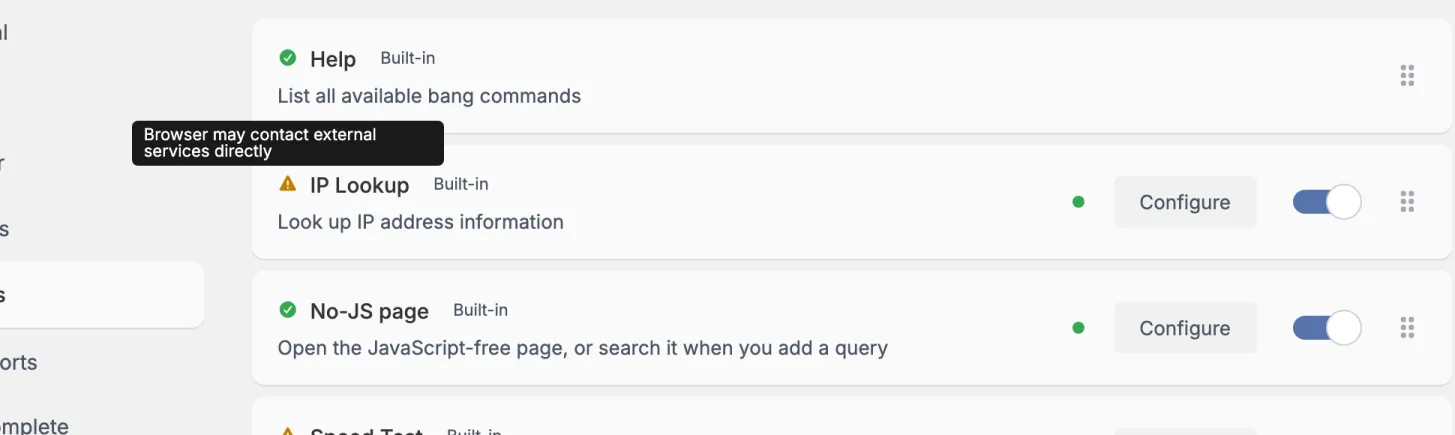
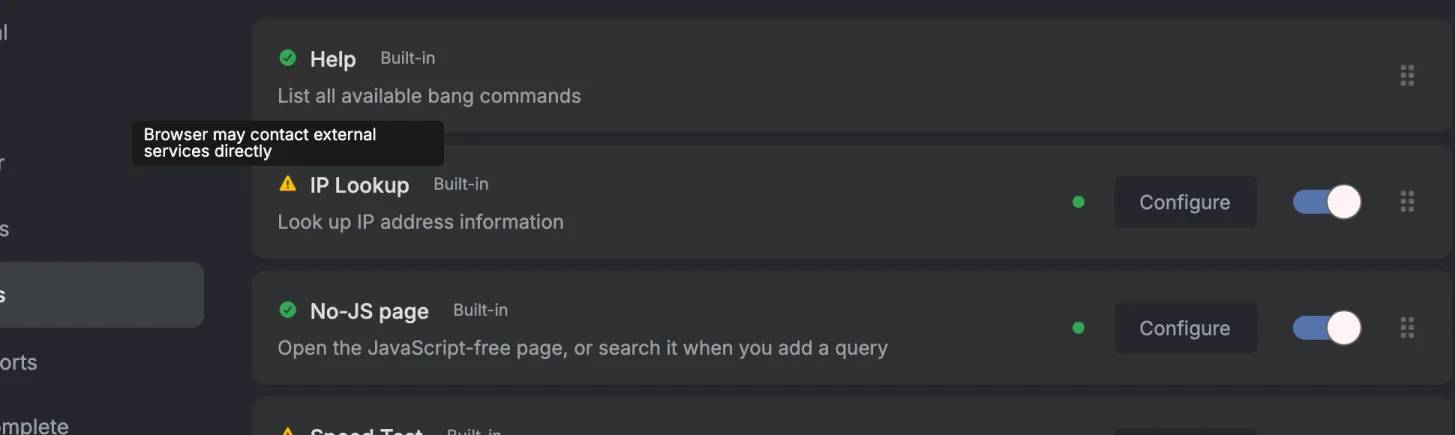
The warning triangle on IP Lookup, with its note. -
DEGOOG_OUTGOING_ALLOWED_HOSTSrestricts the requests engines and extensions make to a hostname allowlist, which is a solid extra layer on an exposed instance.
Tracking pre-release extensions
Setting DEGOOG_BETA_STORE=1 makes Degoog prefer the
develop branch of every store repository over
main or master, falling back silently when that
branch does not exist. It is for extension developers and people who enjoy
living slightly ahead of everyone else.