Degoog Settings
How the settings page is laid out, what belongs to your browser, and what belongs to the instance.
Getting in
The settings icon is in the top right of the home page and the results page. Where it takes you depends on how the instance is configured:
- Normal instance:
/settings. -
Public instance (
DEGOOG_PUBLIC_INSTANCE=true): visitors get a cut-down page with just appearance, search options, and engine toggles. The full admin page moves to/adminand is only reachable if a password is also configured. -
Custom path:
DEGOOG_SETTINGS_PATHmoves the admin page to any string you like, which is a reasonable way to make it undiscoverable.
If a password gate appears, that is
DEGOOG_SETTINGS_PASSWORDS doing its job. If you never set one,
Degoog generated a temporary password and printed it in the server logs at
startup. See Getting started.
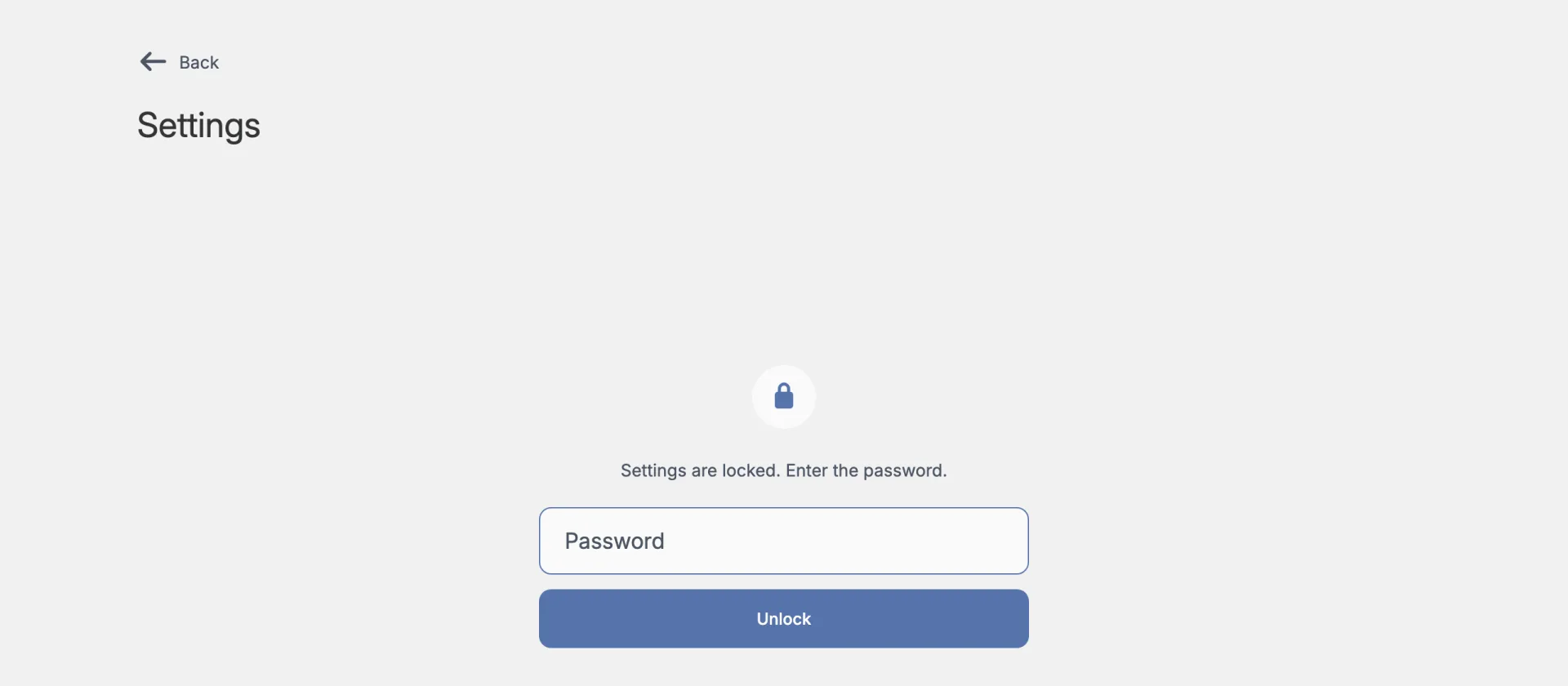
Signing in stores a session token in an HttpOnly,
SameSite=Strict cookie. It also unlocks the domain action menus
on result rows, which is why those disappear when you are signed out.
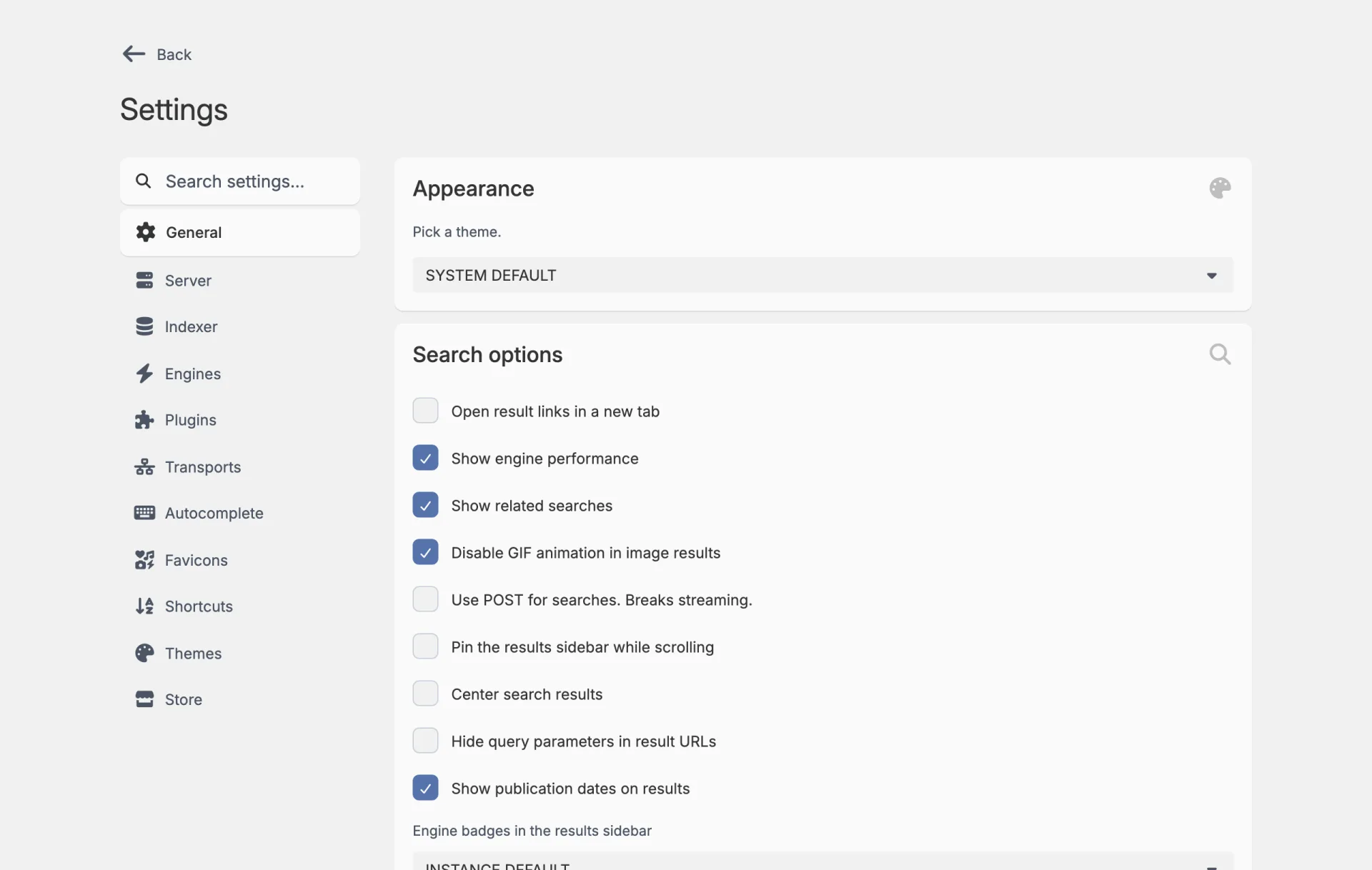
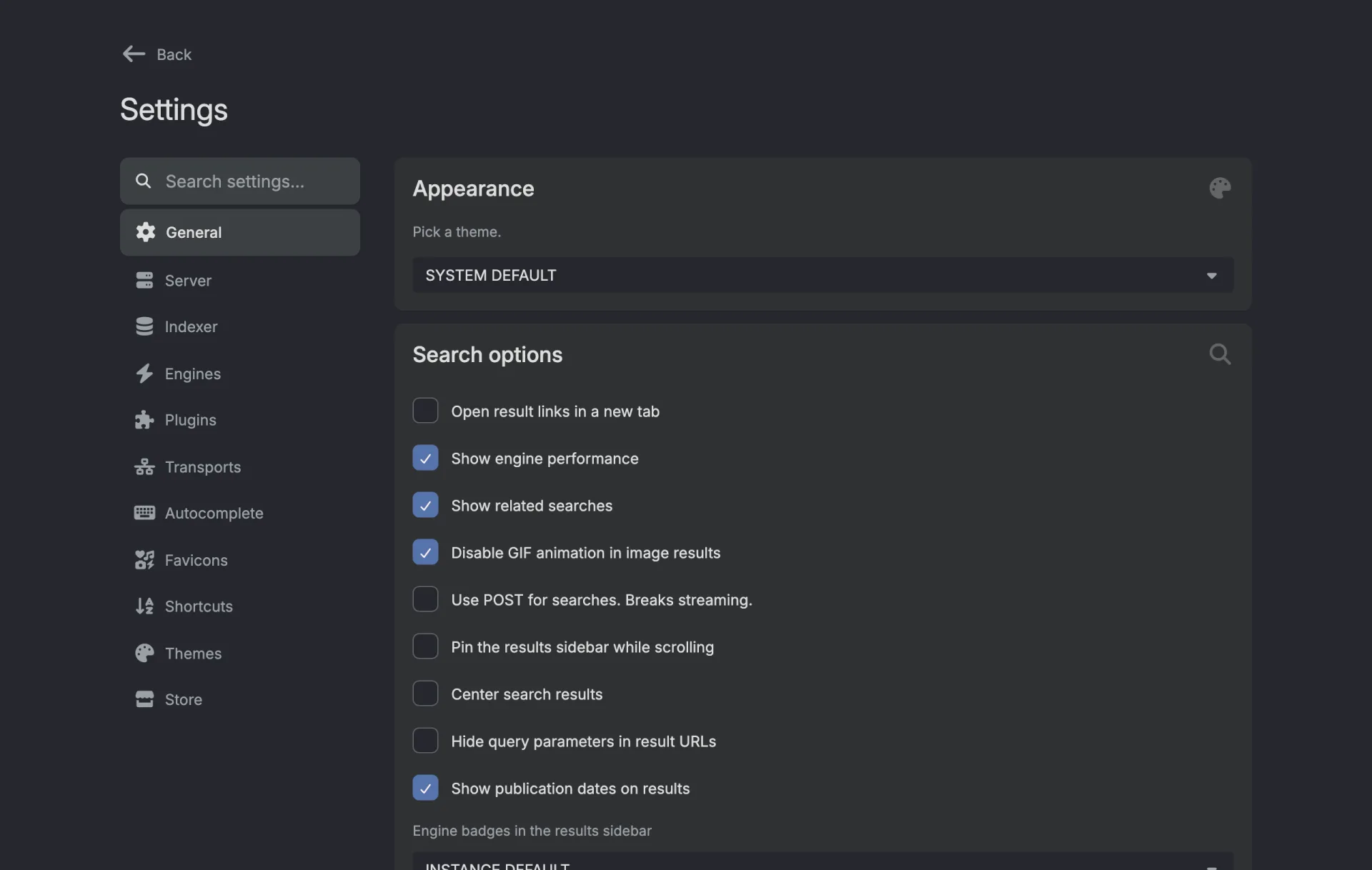
The tabs
| Tab | What lives there |
|---|---|
| General | Theme, search options, instance defaults, the setup tour, app install, and the version check. Covered below. |
| Server | Everything instance-wide: presets, rate limits, bot control, proxies, domain rules, cache, API key, streaming. See Server settings. |
| Indexer | Only appears once the indexer is switched on in Server settings. See Indexer. |
| Engines | Enable, disable, configure, group, and reorder your search engines. See Engines and providers. |
| Plugins | Every installed plugin plus the built-in commands and panels, each with its own settings. |
| Transports | Outgoing HTTP clients, built-in and installed. See Transports. |
| Autocomplete | Suggestion providers, one toggle each. |
| Favicons | Favicon shape and favicon providers. Toggle providers and drag them into the order Degoog asks them in. See below. |
| Shortcuts | Rebind keyboard shortcuts. Add shortcut lets you write your own, see Shortcuts in the developer docs. |
| Themes | Switch the active theme. |
| Store | Add repositories, browse the catalogue, install and update. See Store and extensions. |
There is a search box above the tabs that filters the settings on the current page. Handy once you have a few dozen extensions.
The General tab
Appearance
System default, light, or dark. Stored in your browser.
Search Options
Nine toggles that change how results behave, plus a picker for the engine badges in the results sidebar. They are documented in full in Using search.
Instance defaults
This is the part that surprises people, so it is worth being precise about.
Your theme, your nine search options, and your enabled engines all live in your browser, not on the server. Two people using the same instance can have completely different setups, which is the intended behaviour.
Save current settings as defaults takes your current browser settings and publishes them as the starting point for anyone who visits without settings of their own. It does not overwrite anyone. Each visitor's own choices always win over the instance defaults.
Reset to instance defaults goes the other way: it throws away your local choices and adopts the instance defaults. There is a confirmation, because it does replace your saved settings on that browser.
The Engines tab has its own pair of these buttons for engine selection specifically.


Setup tour
Restarts the first-run wizard from the home page. Useful when you have forgotten where something lives.
Install app
Asks your browser to show the install prompt again. Requires HTTPS and a browser that supports progressive web apps; over plain HTTP nothing will happen.
Version
Shows your installed version alongside the newest release on GitHub, with the date of the last check. It checks at most once a day on its own, and there is a Check Now button plus a link to the release notes.
Restart required
A pop-up appears when an installed extension needs a server restart to work properly. It names the extensions and gives you a button that restarts Degoog for you, or Not now if you'd rather do it later from Settings, Server, Restart server. Searches in flight may be interrupted briefly.
The Favicons tab
The icon next to each result comes from a favicon provider. Install providers from Settings, Store with the Favicon filter and they show up here. The official store has Google, DuckDuckGo, Kagi, Yandex, Site favicon and Identicon.
Favicon shape sits at the top of the tab. Pick circle (the default), rounded square, square, squircle, hexagon, star or flower. It saves on click and applies to everyone on the instance. Every icon shows at the same size. The shapes other than circle cut each icon to that shape, and on the normal page, icons 32px or larger are zoomed in a little to fill it. Custom themes may ignore this setting.
When the indexer is on, a Degoog card sits above the providers. It is the favicon store, icons your instance already saved. Degoog always checks it before any provider, so you can't drag it. It is on by default. Turn it off and every icon comes from the providers and the cache. With every provider switched off it still serves the icons it has saved, and sites it has no icon for get a letter.
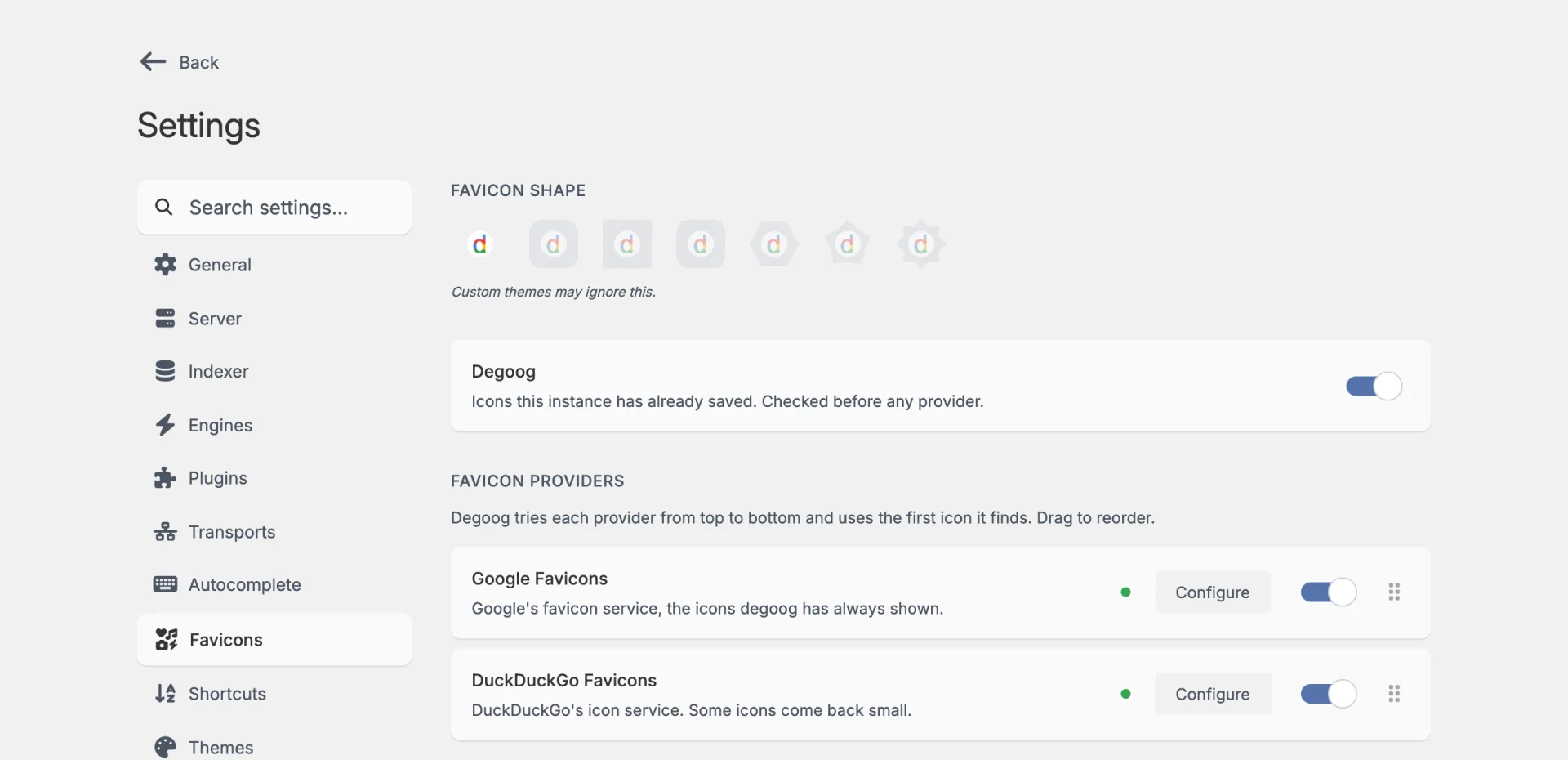
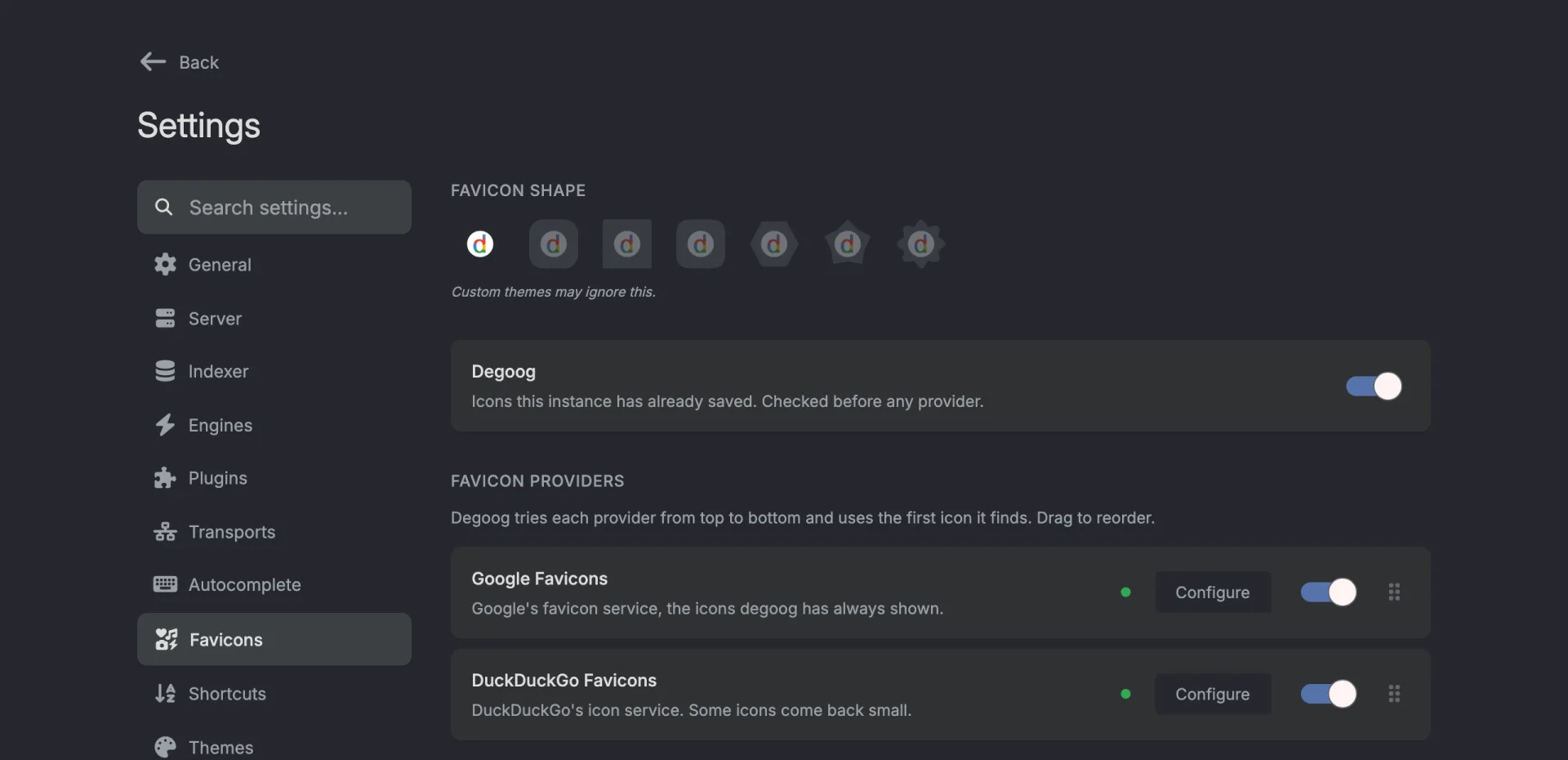
- Degoog never asks a disabled provider.
- Drag the provider cards to set the order. Degoog asks the top one first and moves down when a provider has no icon for that domain, or returns one that doesn't load. A provider you just installed goes to the bottom until you move it.
- A provider with options gets a Configure button. Every provider has an Outgoing HTTP client under Advanced, as engines do.
With every provider off and the store off too, results show a dashed placeholder with a "No favicon extension installed" tooltip. Engines and providers has more.
Where settings are actually stored
| What | Stored where |
|---|---|
| Theme, search options, enabled engines | Your browser (IndexedDB), unless published as instance defaults |
| Result tab order | data/server-settings.json, the same for everyone |
| Extension settings (per plugin, engine, theme, transport, provider) | data/plugin-settings.json on the server |
| Server settings (rate limits, honeypot, streaming, API key, indexer flag) | data/server-settings.json |
| Instance default engines | data/default-engines.json |
| Domain block, replace, and score lists | data/search/search-lists.json |
| Bang aliases | data/aliases.json |
| Banned IPs | data/blocklist.json |
All of those paths can be moved with environment variables. Server-side settings are written atomically, so a crash mid-save will not leave you with a truncated JSON file.
When a setting will not stick
- Check whether it is a browser setting. Clearing site data resets theme, search options, and engine selection.
- On a public instance most server settings are read-only for visitors, and the mutation endpoints return Unauthorized by design.
- If a list is very large, Degoog stops rendering it in the UI and tells you to edit the file directly. That is deliberate, not a failure.
- If nothing at all saves, check the server logs. See Viewing server logs.